Adding a new order
How do I create an order in ticketmatic?
Creating an order consists of five steps. The system will automatically guide you through all settings step by step.
1. Create a new order
Click the green New order button at the top right.
2. Add tickets, products or bundles
Click on add tickets. (You can also choose add products or add bundles if desired):
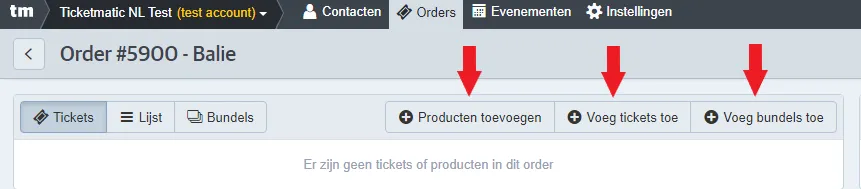
Choose the correct event. If it's a seated event, the seating chart will appear, and you can select specific seats directly. After choosing your seats, click Close to continue.
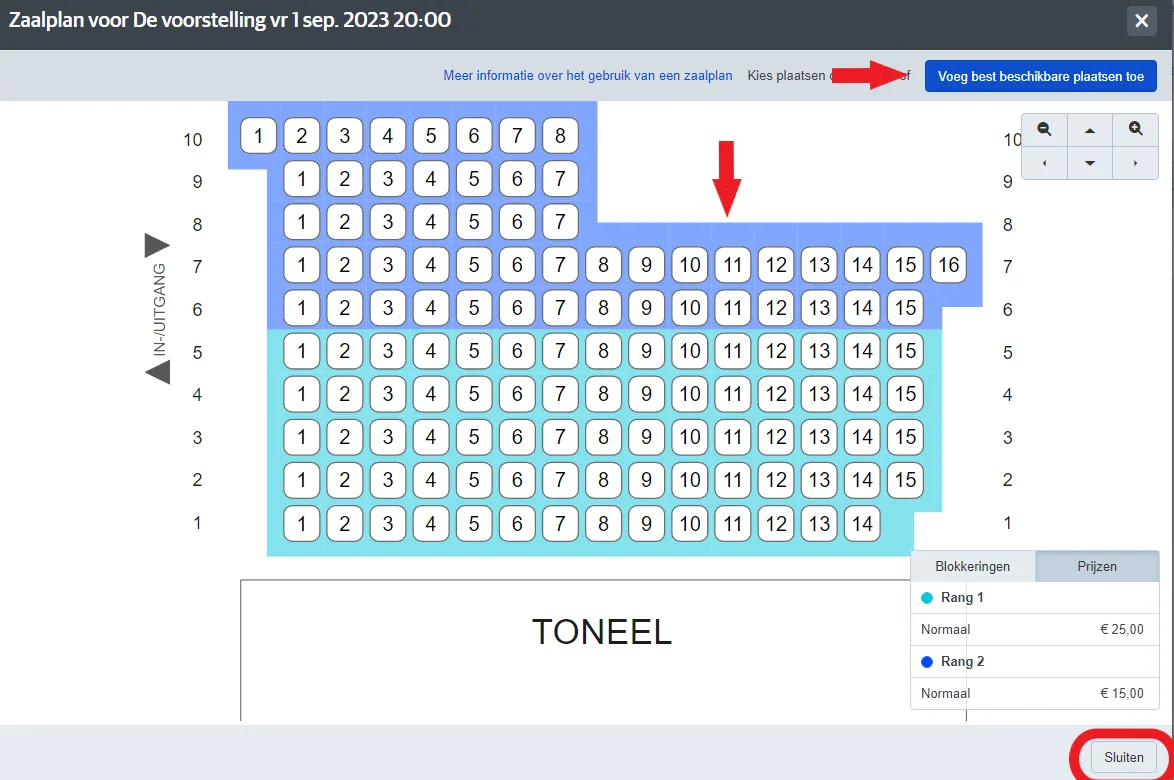
You can also use the Add best available seats option. Here, you simply select the price type and section, and enter the number of tickets. Then click Save. The best available seats will be assigned automatically and added to your order.
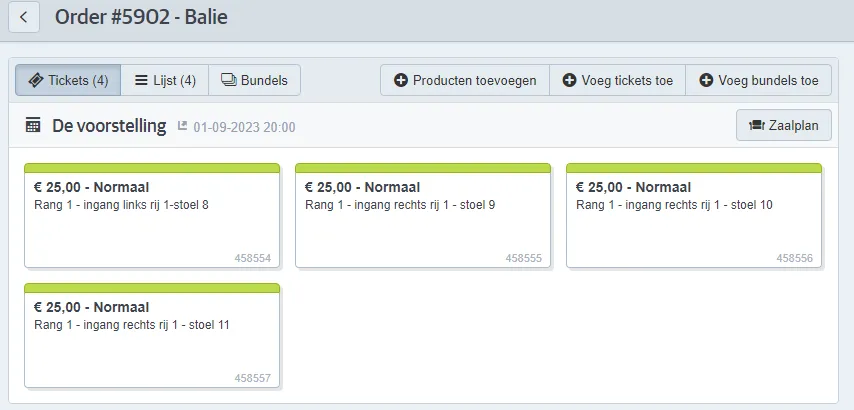
The selected seats will now appear in the order:
3. Add the customer
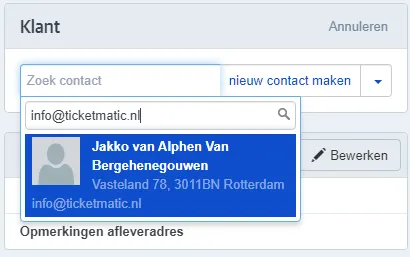
Go to Add customer
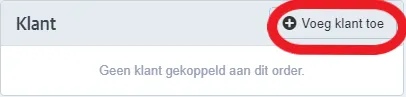
and look up the customer by entering their email address. If the customer has already ordered with you before, their details will appear and you can click to add them to the order.
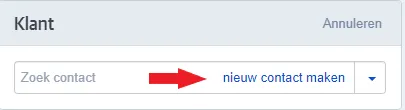
If the customer is not known yet, select create new contact and enter their information.
4. Add a payment and delivery scenario
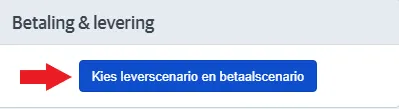
Click on Choose delivery and payment scenario
Make your selection and click Apply
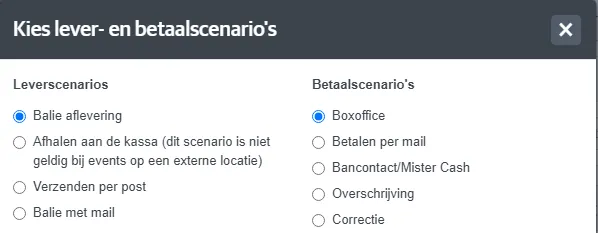
If the payment is made directly at the box office, add it immediately via the designated button.
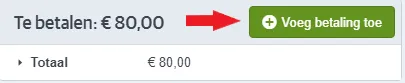
If a deferred payment scenario is selected, the customer will receive an email with payment instructions once the order is confirmed.
5. Confirm the order
Click Confirm at the top right to finalize the order. If the tickets have already been paid, they can be printed immediately. For deferred payments with e-tickets, the tickets will be sent automatically by email after payment.