Managing Duplicate Contacts
How can I manage duplicate contacts based on predefined rules?
Configure rules for the contact deduplication module
The contact deduplication module in ticketmatic searches in the background for possible duplicate contacts based on rules you define yourself. Based on these rules, the system will automatically merge contacts or mark them as possible duplicates, after which manual action is required.
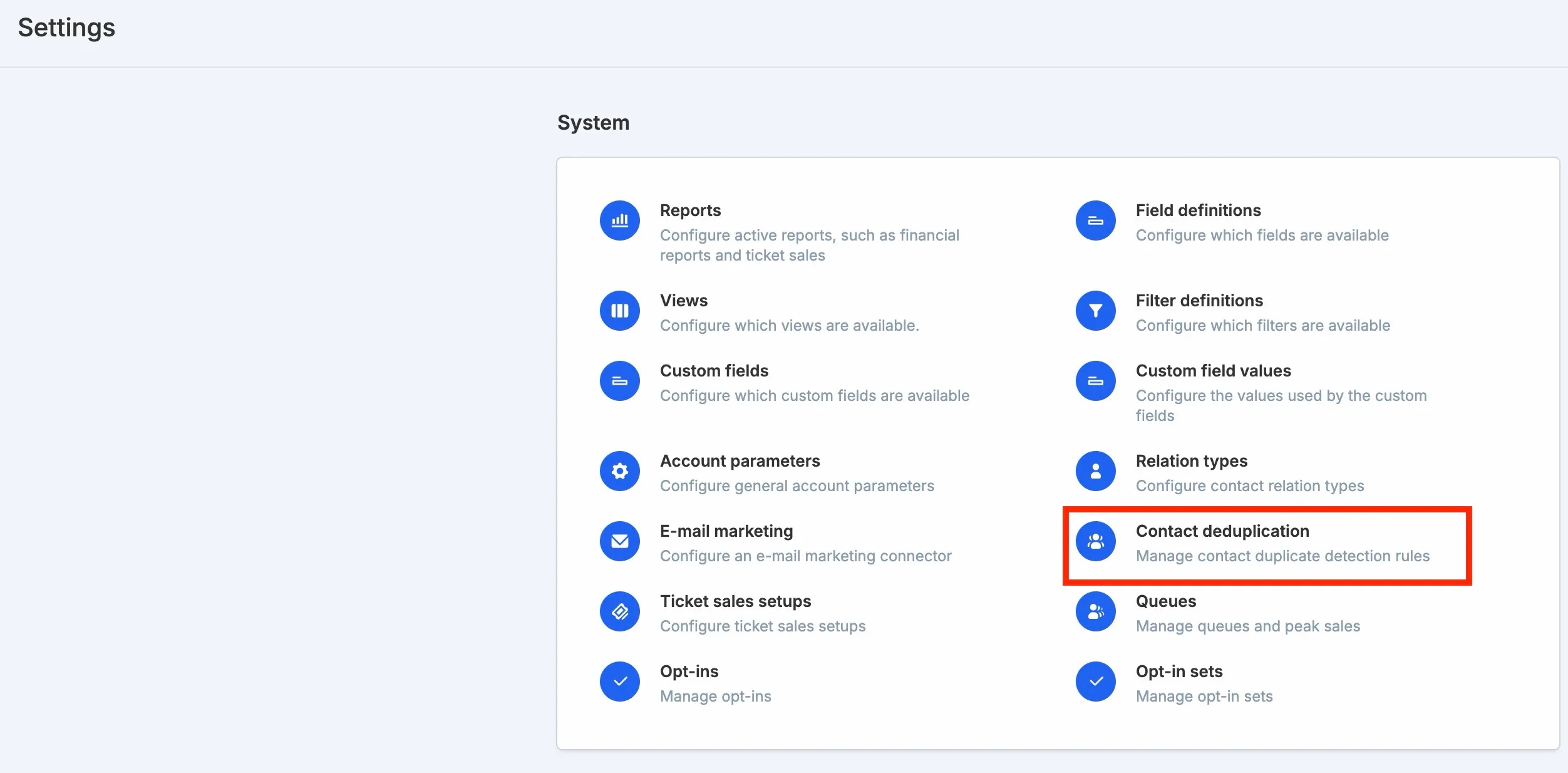
You can set the rules via Settings - System - Contact Deduplication.
Which rule(s) can you set to search for duplicate contacts?
You can configure multiple rules. As soon as a rule applies to at least two contacts, you will be able to find these contacts as possible duplicates via Audience - Contacts - Actions.
For each rule, you can set the following fields:
- First name
- Last name
- Email address
- Address
- Phone number
You can also combine multiple fields in one rule. For example, you can set a Name rule with the fields First name and Last name.
The most common deduplication setting is to use an exact email match.
Each field also has a match type. The match type determines how strict the comparison will be. Depending on the selected field, the match type is either preset or can be chosen by you.
There are three match types:
- Exact match: The fields must be exactly the same.
- Normalized match: The fields are normalized before comparison. Example: For phone numbers, the system removes all special characters and replaces 00 with +. ↪ +32473112233 and 0032 473 11.22.33 will be considered duplicates.
- Fuzzy match: The system ignores spelling or accuracy differences during comparison.
How does contact deduplication work?
After setting the rules, the system will search for duplicate contacts based on these rules. If two contacts are marked as possible duplicates and all contact fields are identical, the system will automatically merge these contacts.
If any contact field differs, you will need to merge the contacts manually via the management module under Audience - Contacts. This way, you decide which customer data to keep.
If you work with an integrated system or synchronize contacts with another system, discuss the impact of this automatic deduplication with your partner first!
Merging Contacts via Manage Duplicate Contacts
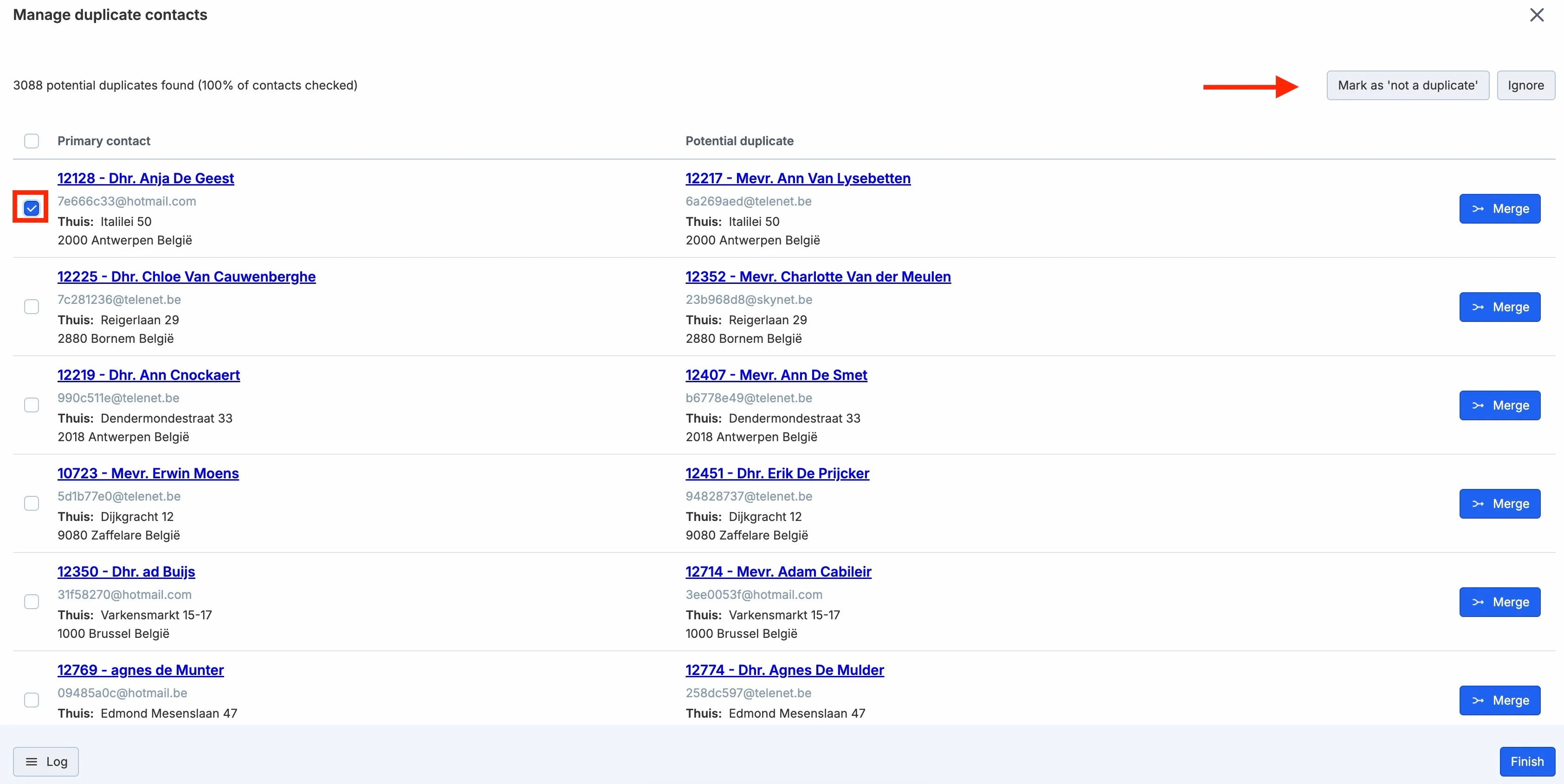
You can find the list of possible duplicate contacts via Audience - Contacts - Actions - Manage Duplicate Contacts.

In the list of possible duplicate contacts, you can perform various actions:
- Merge Merge contacts and designate the primary contact.
- Mark as Not Duplicate These contacts should not be merged and will no longer appear in the list of possible duplicates.
- Ignore Ignore both contacts and do not show them again in the duplicates list during your session. On the next check, the contacts will be marked again.
- Log Overview of all merged contacts.
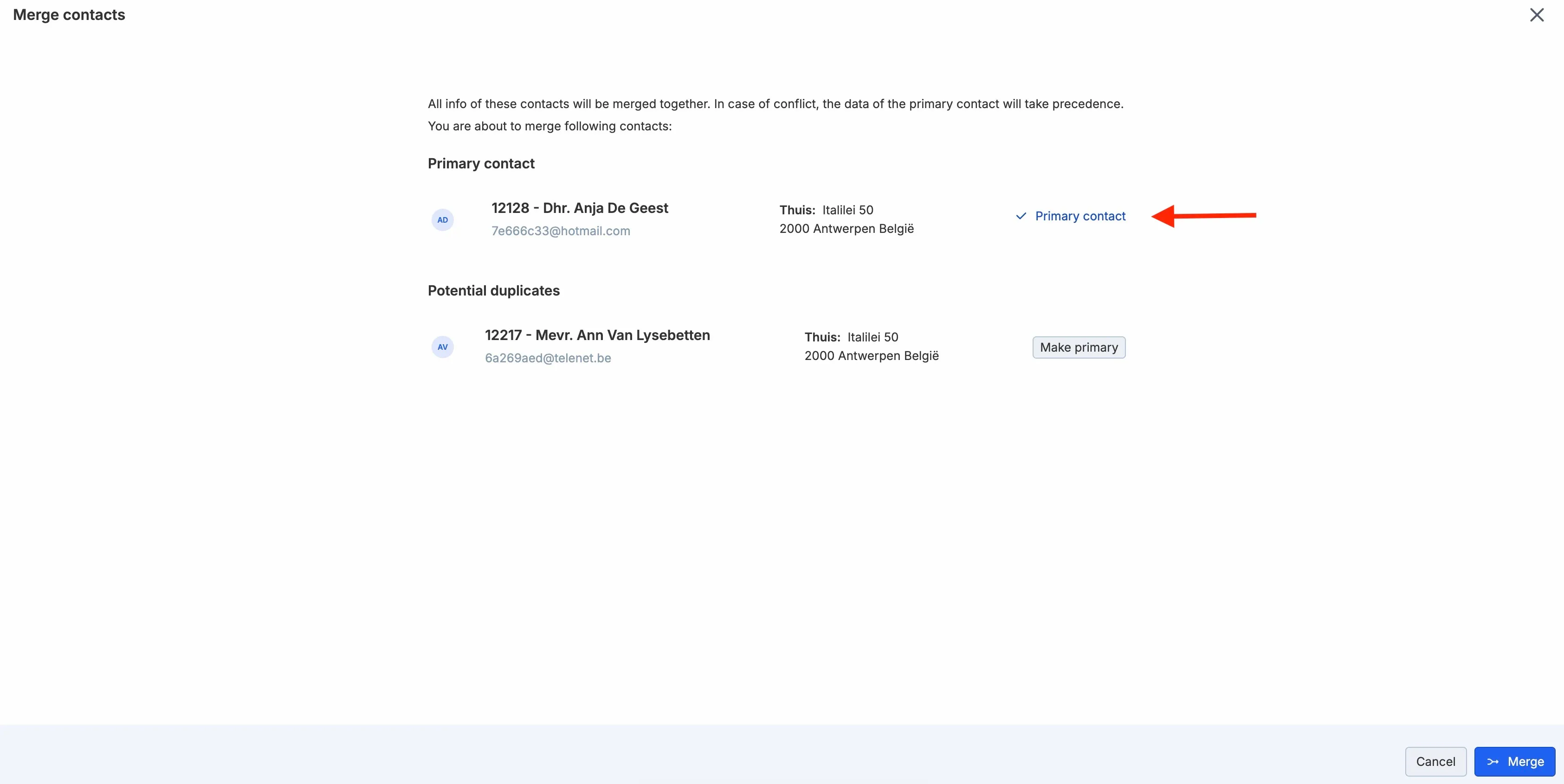
When choosing to merge contacts, you will select the primary contact in the next step. If data differs, the primary contact’s data will take precedence.
Note: For the opt-ins, the date of the last change is considered, regardless of whether this change was made by the primary or the secondary contact.
Manually Merging Contacts
You can also merge customers directly from the list view. Select the contacts (1) and then choose Actions - Merge Contacts.
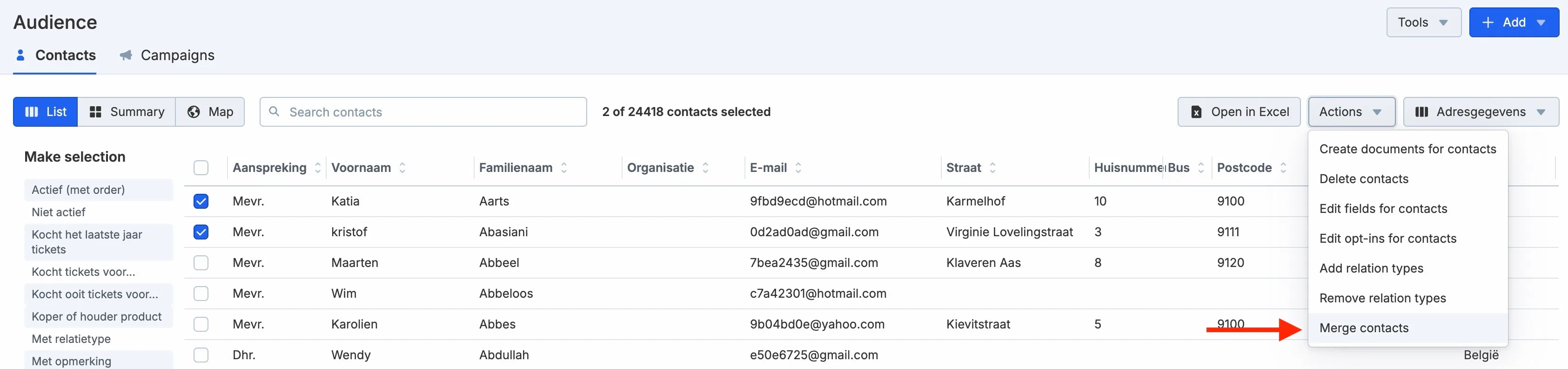
In the next step, choose the primary contact.
Warning: merging contacts cannot be undone.