Payment scenarios with deferred payments
What deadlines can I set in payment scenarios for deferred payments?
For payment scenarios where the customer does not need to pay immediately, you can set various deadlines to automatically manage the process of deferred payments.
The available deadlines are:
- Overdue: The moment when the order is marked as overdue. You can set up a reminder email to be sent to the customer at this point.
- Expiration: The moment when the payment definitively expires. Here, you can set up a cancellation email to be sent to the customer.
- Grace period: The period after which the order is actually deleted. You can set this to happen a few days after the expiration date, giving the customer some extra time to pay.
Setting deadlines per payment scenario
You can configure the deadlines for payment scenarios via Settings -> Payment scenarios. Then select the payment scenario you want to modify.
To be able to set deadlines for a payment scenario, it must be one of the following types:
- Mollie bank transfer (overflow): Only available if payment processing is done via the payment provider Mollie.
- Normal bank transfer (deferred): Transfer where the customer has to deposit the amount into a separate and specific account.
- Deferred online payment: After confirming the order, the customer receives an email with a payment link to pay online.
- Deferred other: Payment will be settled after order confirmation via the box office.
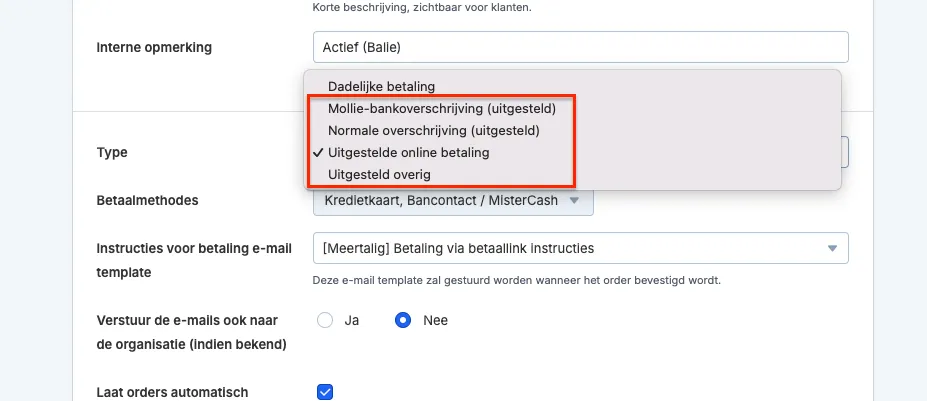
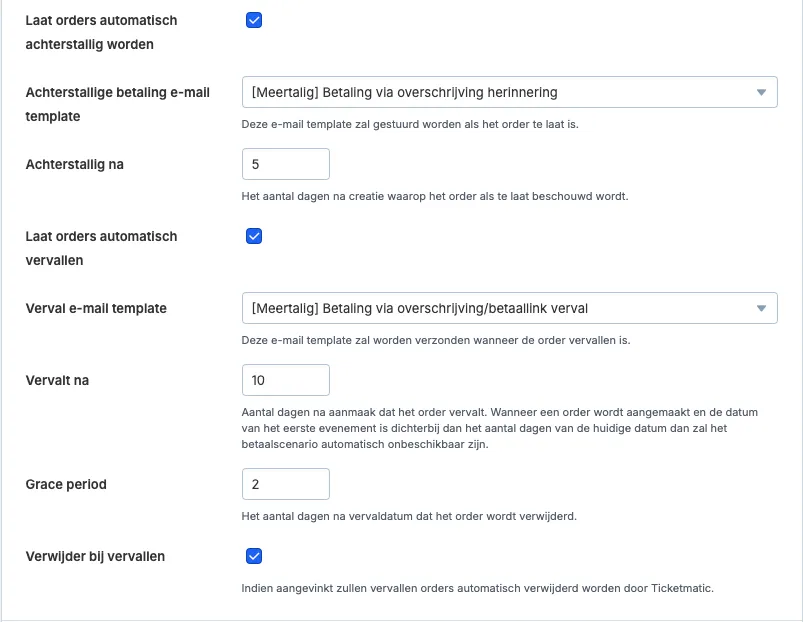
After selecting the type of payment scenario, you can set the various deadlines:
- Payment instructions: The email sent to the customer after confirming the order.
- Automatically mark orders as overdue: Set after how many days the order will be marked as overdue, after which a reminder email can be sent to the customer (optional). This period starts from order confirmation.
- Automatically expire orders: Set after how many days the order will expire and a cancellation email can be sent to the customer (optional). This period also starts from order confirmation.
- Grace period: Set after how many days the order will actually be deleted. This starts counting from the expiration date. Don’t forget to check the Delete on expiration option.
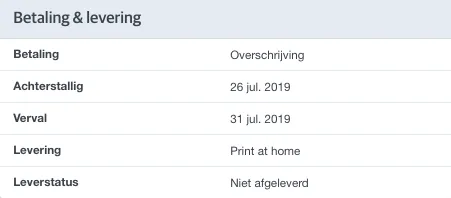
Manually adjusting the deadlines in an order
You can find the deadlines applicable to an order on the right side of the order details.
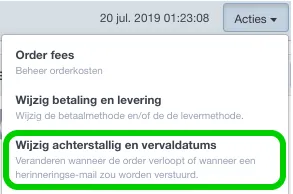
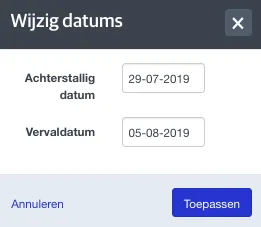
If you want to adjust these deadlines, go to Actions --> Change overdue and expiration dates.
Then you can enter the new deadlines.
The deadlines for a Mollie bank transfer can no longer be adjusted. If you want to give the customer more time to pay, you can only do so by canceling the outstanding payment request and creating a new request/transfer.
It is important to inform the customer that the structured message has changed and that they should only use the instructions from the most recently received email to make the payment.