Sending single mails
Email campaigns are managed in the Audience module
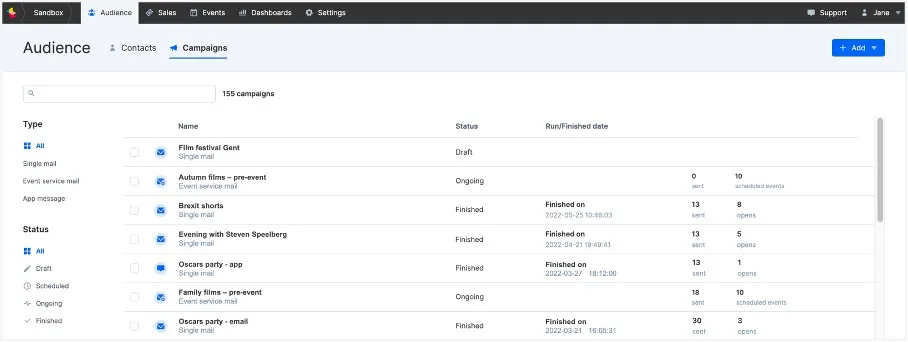
Before you start sending an email campaign, you need to ensure that the required marketing email senders are correctly set up. This includes validating ownership of the email address(es) and setting up SPF and DKIM records (which are types of security). These steps are essential to maximize the chances of your emails reaching their intended audience. Please contact support if you need help setting this up.
This article explains how to set up and send a single mail.
With single mails, you can send newsletters, marketing emails, and one-off announcements to a specific group of recipients.
By adding contact merge tags (such as your recipient's first name), you can personalize these emails and tailor them to your audience.
While you can manually create a 'Single mail' campaign to send information before an event, using an 'Event service mail' campaign offers several advantages:
- Automatically updated when changes occur: If the date or time of an event changes, the email's sending schedule is automatically adjusted to reflect the new details.
- Automatic sending for new purchases: If someone buys a ticket for the event after the event service email has been sent, the email will automatically also be sent to this new ticket holder.
- Adding event-specific merge tags: Such as timings, location, or additional practical information.
These automatic adjustments ensure you always stay up-to-date and all visitors receive the correct information.
Setting Up a Single Mail Campaign
- Open the Audience module and click on Campaigns to add a new campaign.
- Click on Add and then on Email campaign to create a new campaign.
- Enter the name of the campaign and choose the type Single mail.
- Click on Save.

The name you choose here is not visible to the public; it is strictly for internal use.
Configuration
In the next screen, follow these steps:
- Select the 'Sender' email address from the dropdown menu. Note that you can only choose from email senders that have already been set up. Contact support if you want to add new sender addresses.
You can set up a maximum of five sender addresses. Would you like to add an extra sender address? Please contact support.
- Define your audience in the 'To' field using the available filters. Just like in the Contacts tab in Ticketmatic, you can combine multiple filters.
- Add the subject line of your email in the designated field. A preheader is a short summary text that appears in the inbox immediately after or below the subject line.
Designing email content
Now you can design the content of your email. You have several options:
- Design the content of your email. You have several options:
- If you want to design the content yourself without creating a reusable template, select 'Empty template' from the dropdown menu.
- If you want to create a template to reuse later, click the link 'You can create email templates here' (see image below), which will take you to Settings --> Mail templates where you can create a reusable template.
- If you want to start from an existing template, select the desired template from the dropdown menu.
You can choose to finish the email later; your draft will be saved automatically.
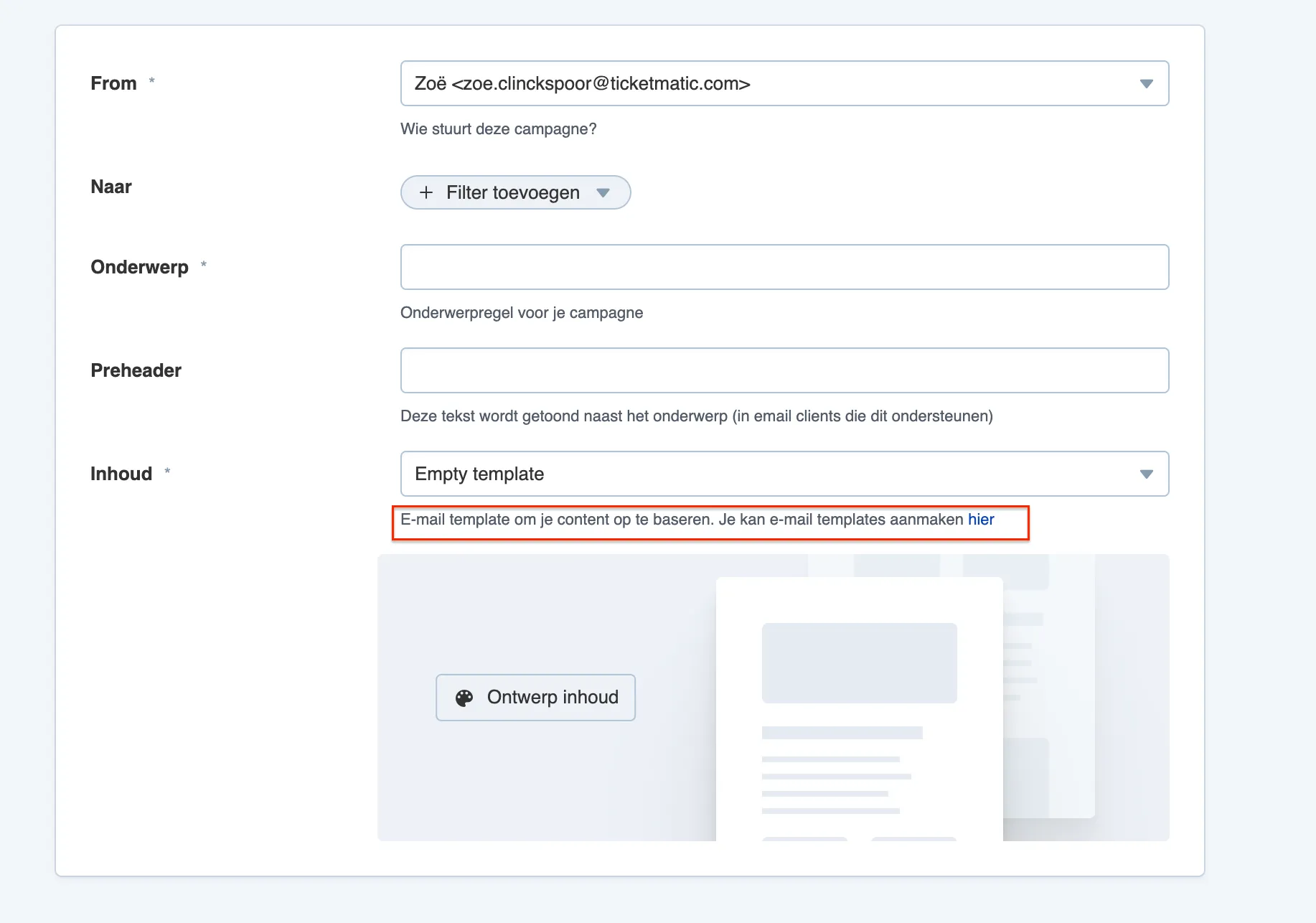
Using the convenient email designer, you can now format your email (see also Designing EmailsDesigning Emails).
Choose the desired content blocks and design the email exactly how you want. You can add extra content specific to a certain campaign or create a one-off email from scratch. If you add your content to an existing template, it will only be added to that specific email campaign and not to the template itself.
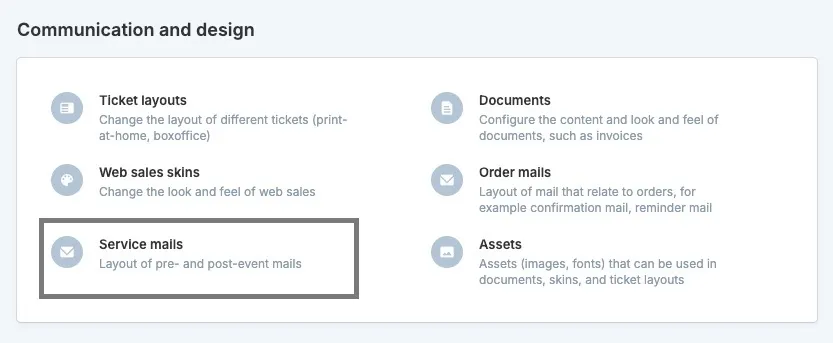
You can also find your mail templates under Settings - Communication and design.
- Click Design content – This opens the visual editor where you can create or adjust the email content.
- In the visual editor, you can fully customize the content to your liking. You have various editing options, such as adding text, images, and formatting. Additionally, there are two useful features:
- Preview: You can preview the email in both desktop and mobile versions to see how it looks on different devices.
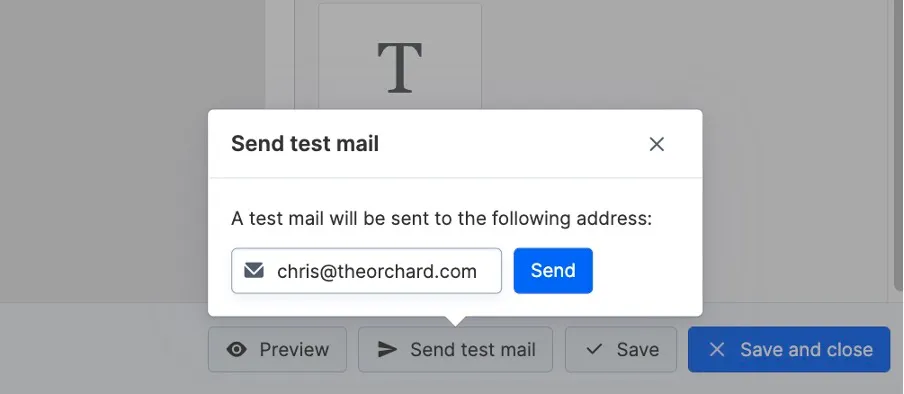
- Send test email: You can send a test email to any email address to verify how it will display.
- Once you are satisfied with the design, click Save and close to save your changes and return to the overview.
Sending
Back on the main screen of the campaign, where all elements have been set, click Send or schedule. You can choose to send the email immediately or at a specific date and time.
If desired, you can prepare and schedule multiple emails for delivery.
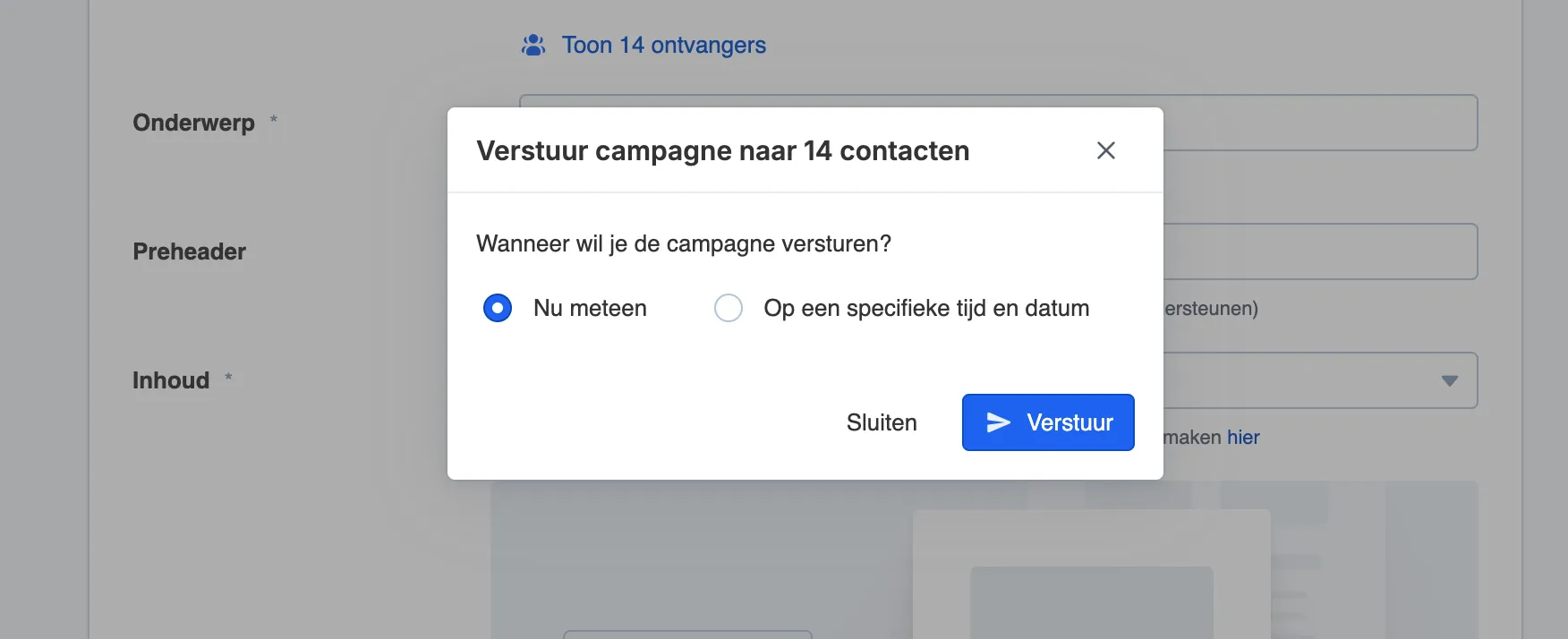
After sending or scheduling the campaign
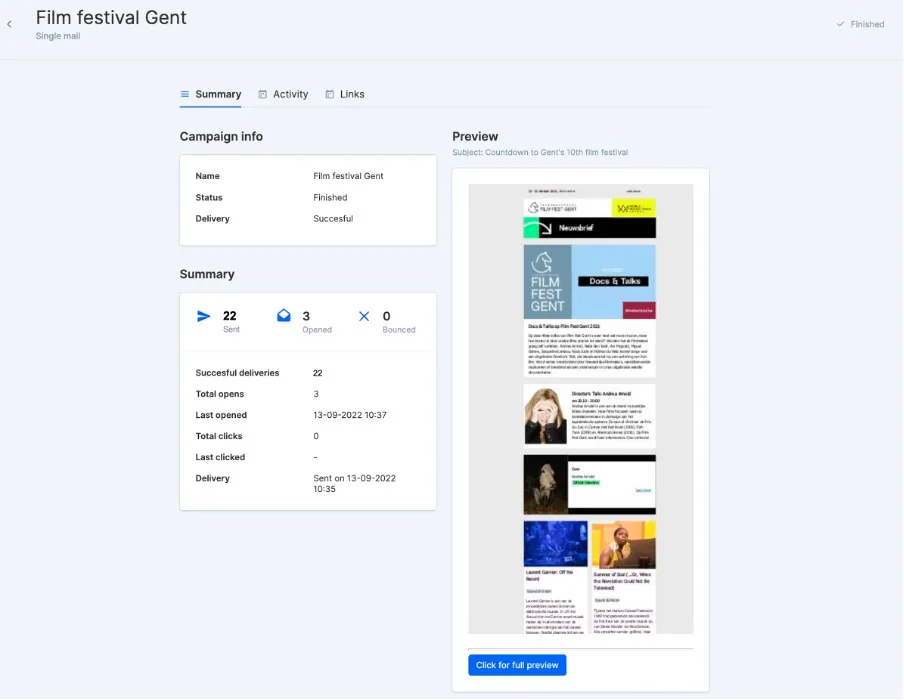
Once you have sent or scheduled the campaign, you will be taken to an Overview screen. Here you can view the following information:
- Campaign information: This includes details such as the name of the campaign, its current status (e.g., sent or scheduled), and the progress of the sending process.
- Email preview: You can view a preview of the sent email to verify the content.
- Summary of statistics: This includes information on the number of successful deliveries, how often the email was opened, the number of link clicks, and other key metrics.
These insights help you monitor and analyze the success of your email campaign.
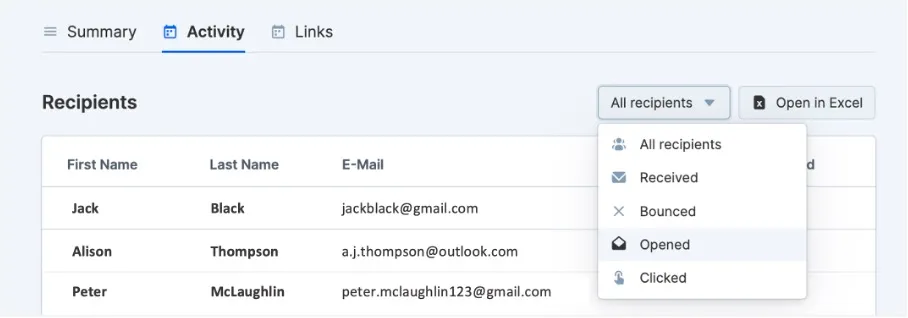
The Activity tab shows a list of all recipients of the campaign, along with information about whether they opened the email and/or clicked on a link. You can filter the results and download them to Excel.
The Links tab displays which URLs were included in your email and how many times they were clicked.
Back on the main Campaign overview page, the status of the campaign in our example has changed to Completed. Here you can also see the number of sent emails and how many times they have been opened.
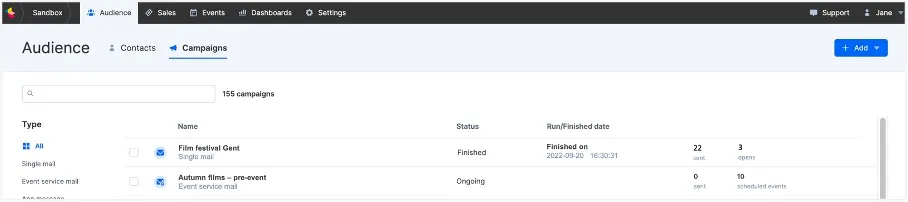
Here you will find an overview of all email campaigns. You can filter by mail type (single mail or event service mail) and by status (Draft, Scheduled, Running, and Completed). In the top right corner, you will find the Statistics button, which allows you to see how many emails were sent out periodically.
Rewatch our webinar on creating email campaigns here. (in Dutch)