External barcodes
How do I use barcodes from an external system in ticketmatic?
To manage and use external barcodes in ticketmatic, you can easily add them to the system. This is useful when a third party sells a batch of tickets with their own barcodes. By registering these barcodes in ticketmatic, they will be recognized during access control with the ticketmatic scan app. This ensures that tickets sold externally are also processed smoothly.
Replacing barcodes
It is possible to replace the barcodes of (a selection of) tickets in an event. This may be necessary, for example, in the case of batch sales by an external party with their own barcodes. By replacing the barcodes in ticketmatic with the provided external codes, the externally sold tickets will be scannable during access control.
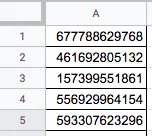
To replace barcodes, you need an Excel or .csv file containing the external barcodes. Make sure the barcodes are complete, without other characters or spaces.
Go to Events and open the relevant event. Click on the Tickets tab and select the tickets for which you want to replace the barcodes.
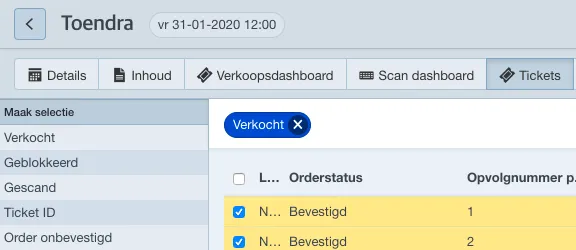
Choose Actions --> replace barcodes. The barcodes can be copied and pasted easily. It is important that the number of external barcodes matches exactly the number of selected tickets you want to replace.
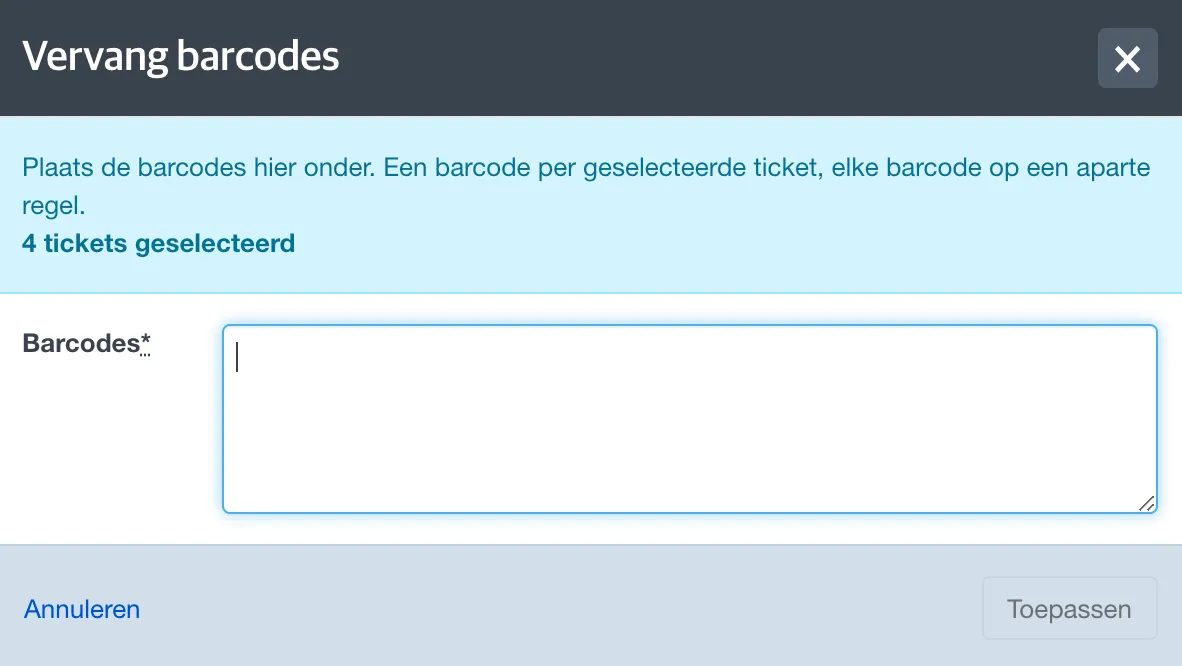
Click Apply to confirm the replacement of the barcodes.
Importing barcodes
With the import barcodes function, you can upload external barcodes so they can be recognized and processed when scanning tickets.
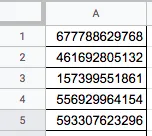
To import barcodes, you need an Excel or .csv file containing the external barcodes. Make sure the barcodes are complete, without any other characters or spaces.
You can upload the barcodes in the event configuration by clicking the pencil next to the Tickets section.
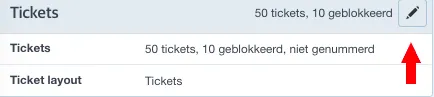
Now click Add contingent tickets.
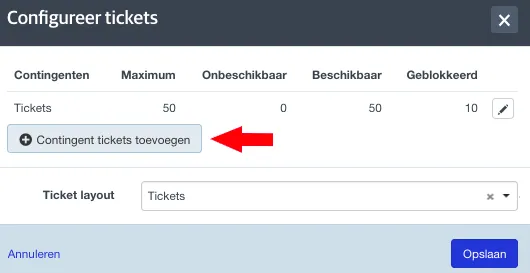
In the next screen, you can select the option to import barcodes. After choosing this option, you can give the batch a specific name and import the barcodes. Simply copy the barcodes from your Excel or .csv file and paste them into the Barcodes field. ticketmatic automatically recognizes the number of barcodes and adds them to the system.

Ten slotte bevestig je met Toevoegen en vanaf dan kunnen de geïmporteerde barcodes herkend en gescand worden.
Note: With this method, the system will increase the venue capacity by adding the number of imported tickets to the current venue capacity.
Alternative: Creating a scan event
If importing barcodes should not affect the venue capacity, you can choose to create a separate scan event. In the ticketmatic scanning app, you will then need to select both events for scanning.
Creating a scan event is done in the same way as any other event. Below are some tips for setting up such a scan event:
- Add an extra note to the event name. Example: Stef Bos – Scan
- In the pricing settings, add any price with a value of 0 euros. Make this price type unavailable for all sales channels.
- In Extra information, deactivate sales for all sales channels to ensure no tickets can be sold.