Filters and Selections
How can I combine filters and save them as a selection?
Filter functionality
In the Contacts, Orders, Events, Tickets in Events, Individual Tickets, and Waitlist views, it is possible to create selections using an extensive filtering system. You can combine various arguments/filters to achieve the desired result.
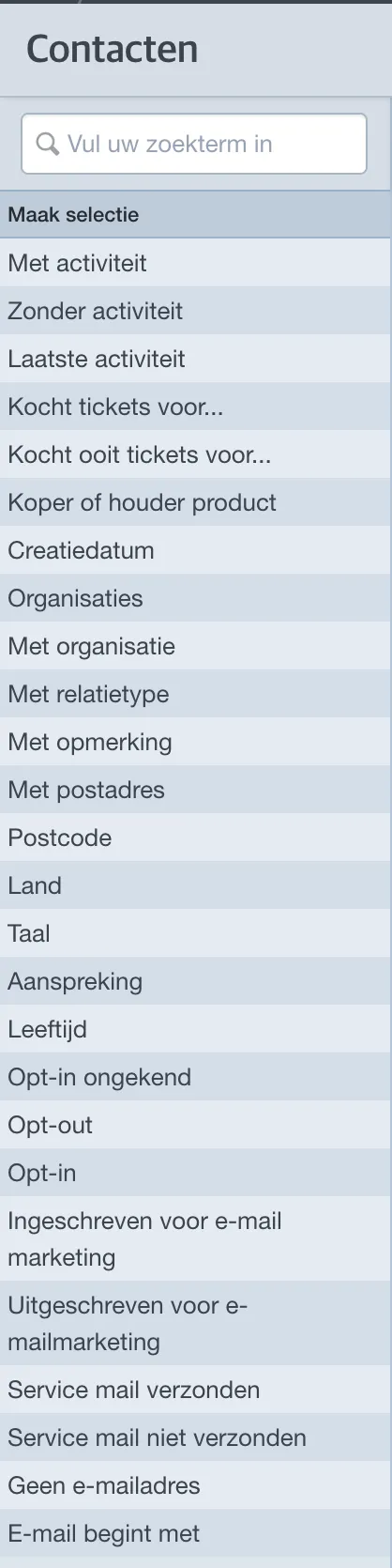
You can always find the available filters on the left side of your tab. Want to add extra filters? Just contact support.
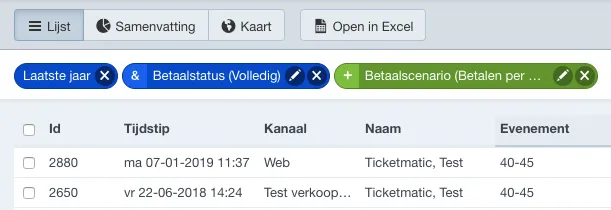
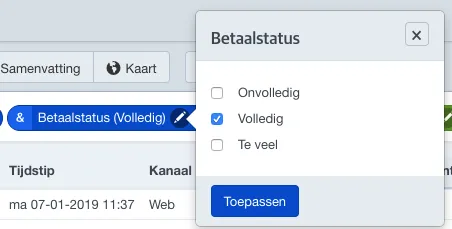
Filters can be individually edited or removed. Click the pencil icon or the cross next to the applied filter.
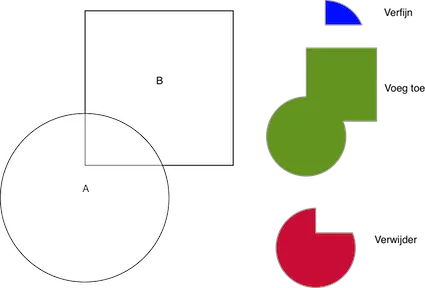
Refine, Add, and Remove
Your selection can consist of multiple combined filters. Each added filter can be used to refine (blue), add (green), or remove (red) from your selection. These actions have the following effects:
Examples
Refine: If I first filter all contacts who bought tickets for Bruce Springsteen and then apply the filter "Country: Belgium" using 'refine', I will get a list of all contacts who have a ticket for Bruce Springsteen and have Belgium as their country in their contact details.
Result: All Belgians who have tickets for Bruce Springsteen.
Add: If I first filter all contacts who bought tickets for Bruce Springsteen and then apply the filter "Country: Belgium" using 'add', I will get a list of all contacts who have a ticket for Bruce Springsteen plus all contacts who have Belgium as their country in their contact details.
Result: All Belgians in your entire contact database + everyone who has tickets for Bruce Springsteen (including non-Belgians).
Remove: If I first filter all contacts who bought tickets for Bruce Springsteen and then apply the filter "Country: Belgium" using 'remove', I will get a list of all contacts who have a ticket for Bruce Springsteen excluding those who have Belgium as their country.
Result: All non-Belgians who have tickets for Bruce Springsteen.
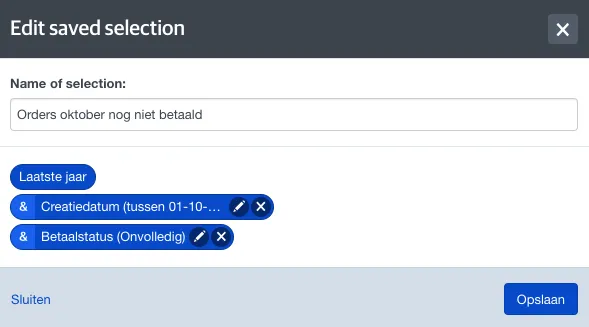
Removing filters is possible in almost all cases. If a second added filter depends on the first filter, you won’t be able to remove it. In the example below, you cannot remove the 'Last year' filter because otherwise there would be no data left to filter by 'Payment status incomplete'.

You can assign a specific relation type to certain contact selections. For example, you could give all contacts who purchased more than 10 tickets in 2023 the relation type 'Big spender 2023'.
Selections
If you frequently use the same combination of filters, you can save them as a selection. Selections reflect the current state of the arguments/filters you have applied.
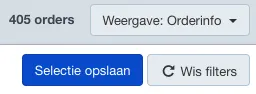
Your saved selections appear below the standard filters and can be managed, deleted, or shared.
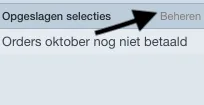
Click Manage next to Saved selections to modify your selections.
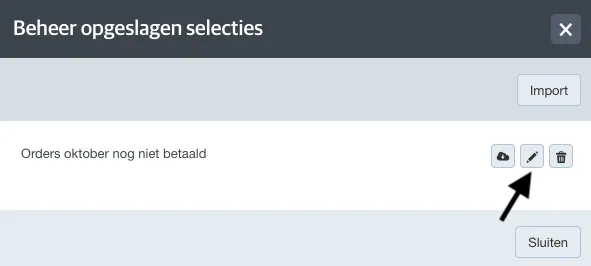
To edit, click the pencil icon. To delete, click the trash bin icon.
You can, for example, change the name of your selection or adjust the applied arguments/filters:
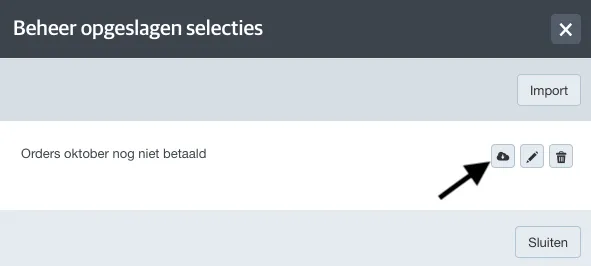
You can easily share your selection using the download button. Once you download a selection, a file is generated that you can forward. The recipient can then import this file into their own environment under saved selections.
To import a file, click Manage and then Import. Upload the file, give it a name of your choice, and the selection will appear under your saved selections.
You can also export your selection to Excel. Check the orders you want to export and then click 'Open in Excel'. The selected data will then open in an Excel file.