Service mails
How do I automatically send emails to ticket buyers before or after an event?
This article covers service mails that you can find via Settings --> Service mails
If you want to send service mails via the Audience module, click here: Sending single mails
With Ticketmatic, you can send service mails to your visitors, both before and after an event. You can fully customize the content of these emails and configure them per event. You can also decide which contacts receive these emails based on price types and opt-ins.
Managing service mail template(s)
To send service mails, you first need to set up a mail template. In this template, you define the design, content, and sending settings of your service mail. You can create multiple templates if you want to use service mails for different purposes.
You can find the service mail templates via Settings → Service mails. Can’t find this section, or is there no template yet? Let us know so we can add a default template to your account.
Service mail design
When you open a template, just like with order mails and ticket layouts, you'll see the HTML and CSS code on the left where the default layout and text of your service mail are defined.
On the right, after selecting a random contact (1) and an event (2), you can preview what the service mail will look like for the visitor.
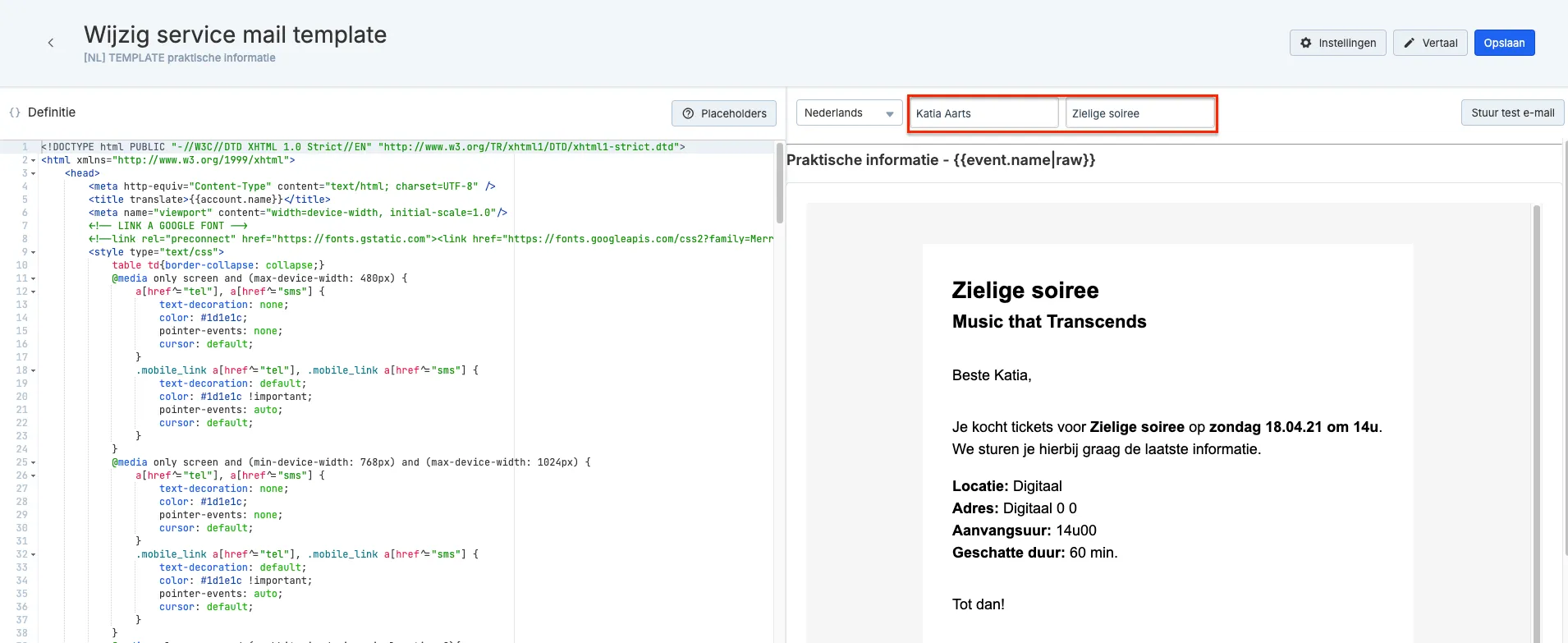
Using the Send Test Mail button (top right), you can send the email to your own mailbox.
Service mail content
The default text of the service mail is set via the HTML code in the template. This text can be automatically supplemented with event information.
It is also possible to display event content fields in your service mail. Contact support if you need more information about this.
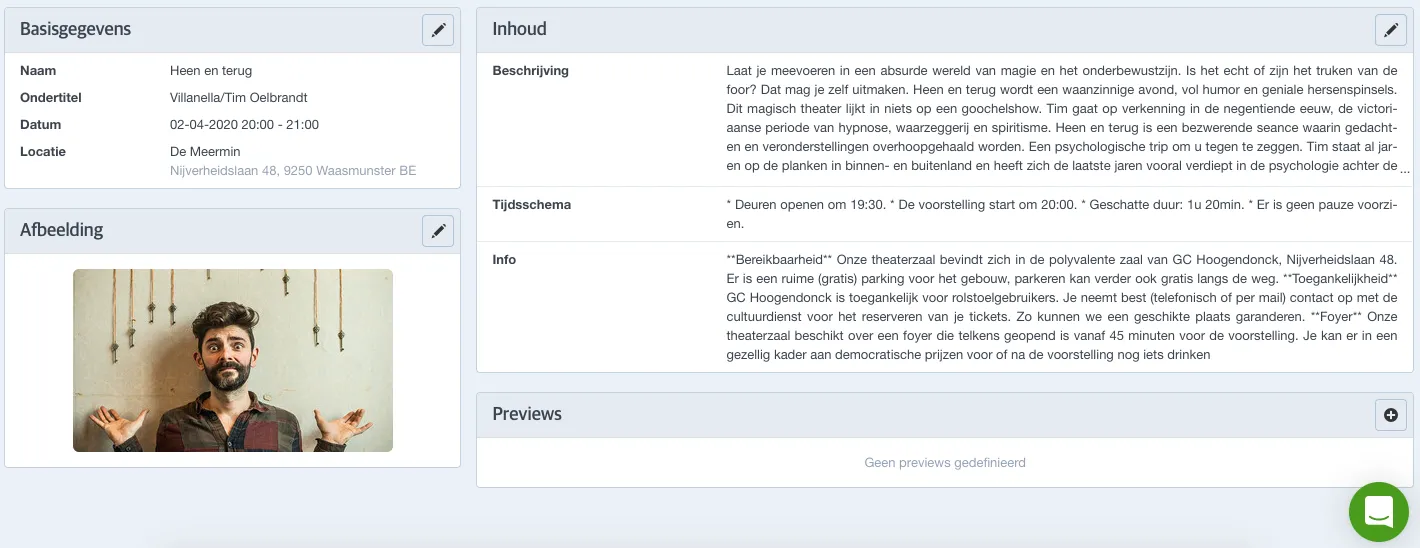
Text fields can be formatted using Markdown, a simplified version of HTML, to ensure correct formatting in service mails.
If you'd like to expand your service mails with upselling, you can discuss the options with the Ticketmatic team. Examples include a calendar with upcoming (similar) events, promoting food and beverage offers, or links to gift vouchers, donations, or merchandise.
Settings
At the top of the service mail template, go to Settings.
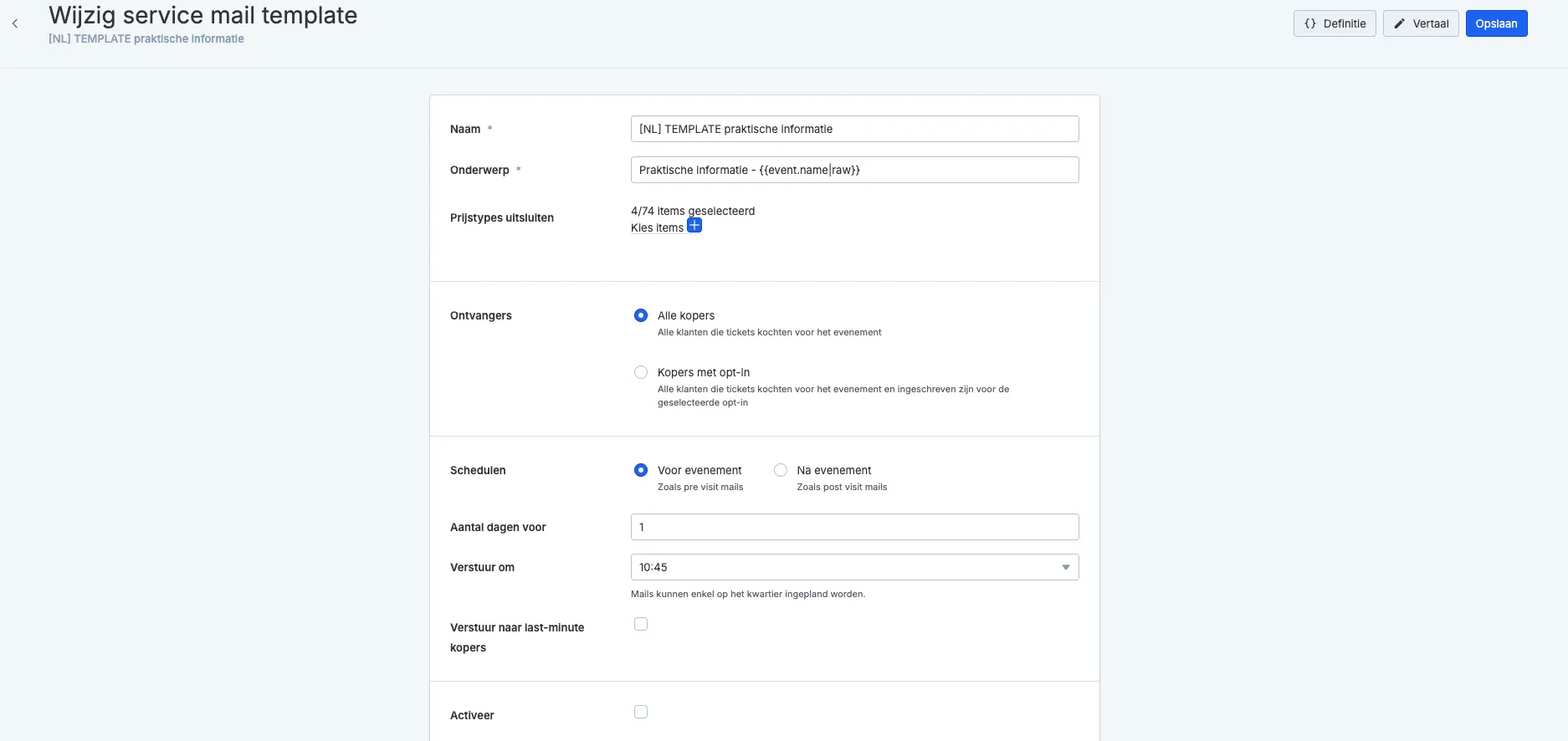
- Name: This is the internal name of the service mail. It is only visible to you, not to ticket buyers.
- Subject: This is the subject of the email sent to your visitors. You can add the event name, date, or location using event placeholders so that the correct information is automatically included per event. Example: "Practical information - {{event.name|raw}}". Feel free to contact us if you need help with this.
- Exclude price types: You can choose to exclude visitors with tickets of certain price types from receiving the service mail. For example, you can exclude all visitors with complimentary tickets.
- Recipients: If an opt-in for service mails is active, you can set that service mails are only sent to contacts who have opted in.
Scheduling
- Schedule: You can schedule the service mail to be sent automatically a set number of days before or after the event.
- Number of days before/after: Here you specify how many days before or after the event the email should be sent automatically.
- Send at: This is the time of day when the email will be sent.
- Send to last-minute buyers: If tickets are still sold after the service mail has been sent, you can choose to also send the mail to last-minute buyers. In that case, the service mail will be automatically sent after each confirmed order (every 15 minutes up to the event start). Note: This only applies to mails scheduled via the schedule settings. Service mails sent manually from the event list will not be sent to last-minute buyers, regardless of this option.
- Activate: By checking this box, you activate the service mail so it can be assigned to events.
Sending service mails
There are two ways to send service mails from Ticketmatic:
- Automatically: You can schedule a service mail to be sent automatically at a pre-defined time.
- Manually: You can send the service mail immediately with a manual action.
Automatically sending service mails
You can schedule a service mail to be sent at a set time, a certain number of days before or after the event. This is useful for reminding visitors about their tickets, sharing practical information, or sending a survey after the event.
Configure the automatic sending settings via the schedule settings in the service mail template (see above).
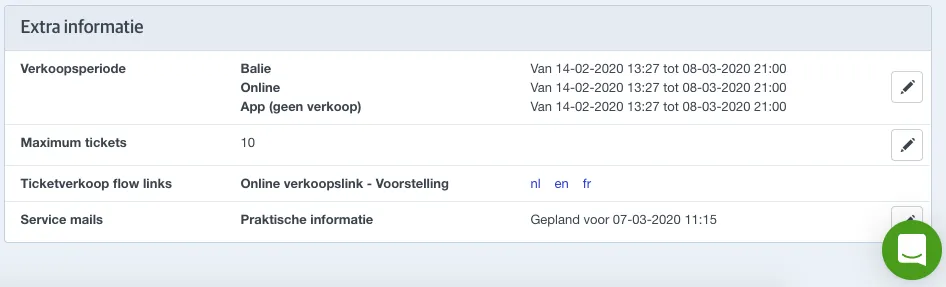
To schedule automatic sending for a specific event, go to the event and then to Extra information at the bottom right.
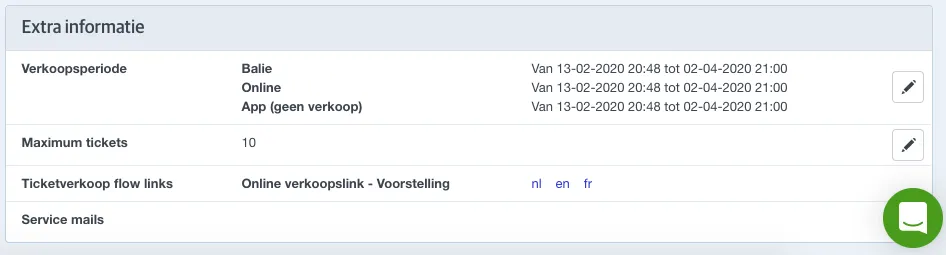
There, you have the option to schedule one or more service mails for the event.
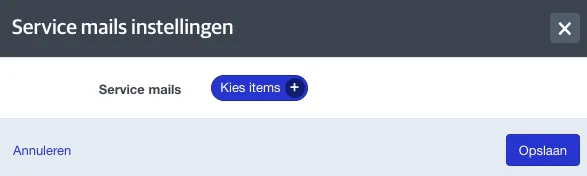
Scheduling in bulk
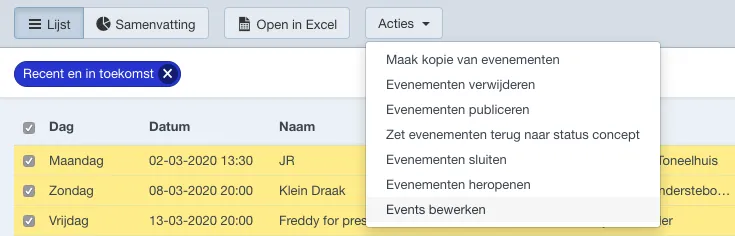
If you want to schedule service mails for multiple events at once, this can easily be done from the events list. Select the desired events and then choose Actions --> Edit events.
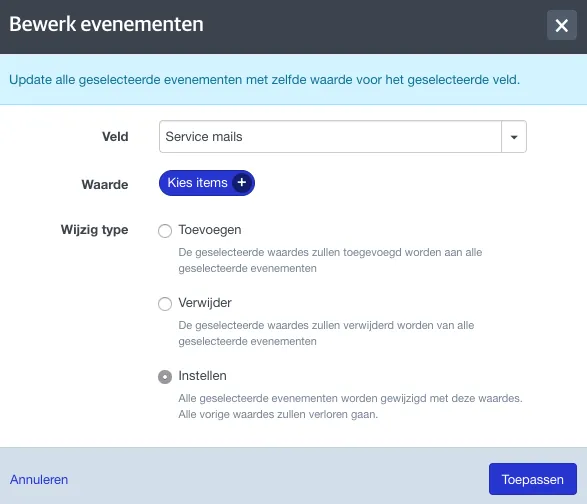
In the Service mails field, select the service mail(s) you want to schedule for the selected events.
Via Change type, you can choose to add, remove, or set service mails for the selected events.
Manually sending service mails
In addition to automatic sending, you can also send service mails manually and on an ad-hoc basis. This is useful for last-minute changes or canceled performances.
To manually send a service mail, select one or more events in the events list, then choose
Actions --> Send service mails --> select the desired service mail --> confirm with Send.
Service mail planning
To see which service mails have been sent or are scheduled to be sent, you can check the service mail planning.
To view the planning per event, go to the event’s configuration page. At the bottom right, under Extra information, you'll find the scheduled service mails.
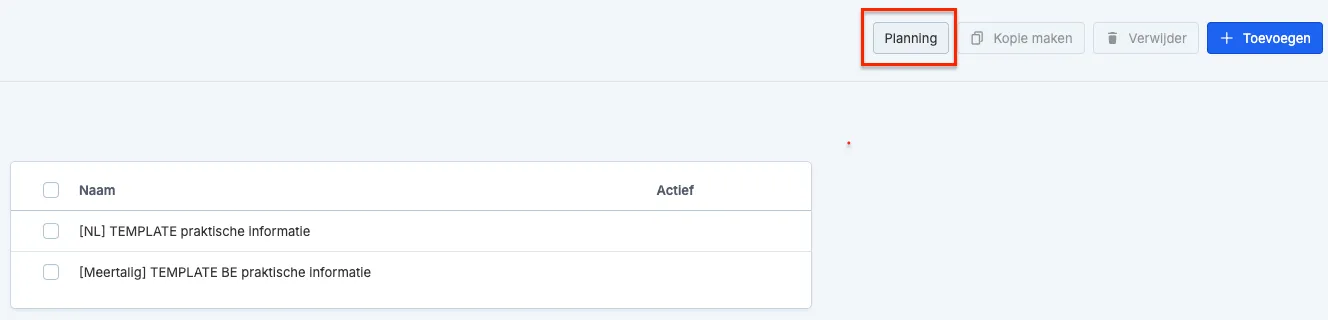
You can view a complete overview of the service mail planning via Settings --> Service mails --> Planning (top right). Adjust the time period if needed to get an overview of all sent and scheduled service mails within the selected period.
Using filters on contact and event level, you can check which contacts received a particular service mail and for which events a specific service mail was sent.