Web sales skins
How do I manage the layout of my sales pages?
Ticketmatic gives you full control over the styling of the web sales widgets using web skins.
A web skin consists of an HTML template and a CSS stylesheet that allow you to customize the structure of the widget pages.
Designing web sales skins
You (or a designer) can use the HTML template and CSS stylesheet to fully design the web skin to your preferences. It is also possible to conditionally display certain information depending on the customer's order.
Need help with this? Just contact support.
Texts in web sales skins
Ticketmatic sales pages contain standard texts, with support for multiple languages. You can easily manage and edit these texts yourself.
To adjust a text, go to Settings --> Web Sales Skins, and open the relevant web sales skin. In the top right corner, you'll find the Translate button, which allows you to modify the texts.

In the next screen, you'll find all the texts used in the web sales skin.
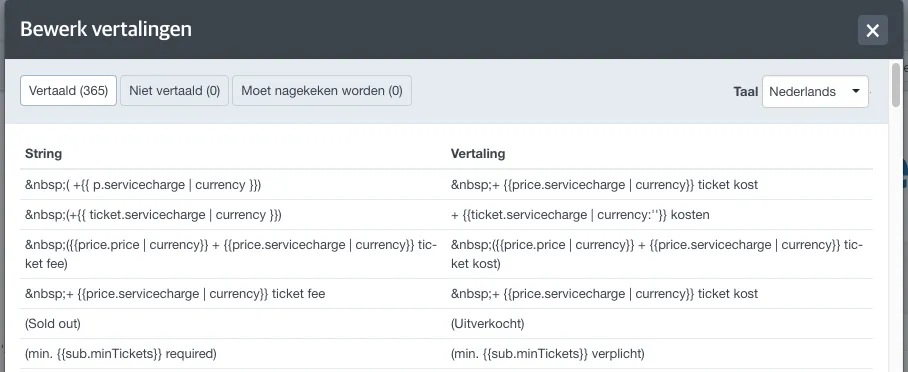
By default, the texts in web sales skins are provided in English, which you can see on the left side of the screen. On the right side, you see the translation of this default text. In the top right corner, you can select which language you want to manage translations for.
To quickly find the correct text, you can use your browser’s search function (Control+F / CMD+F).
For example, if you want to edit the text "Dit totaal is niet finaal." you search for this text in the web sales skin, and then adjust the translation on the right side to your desired text.
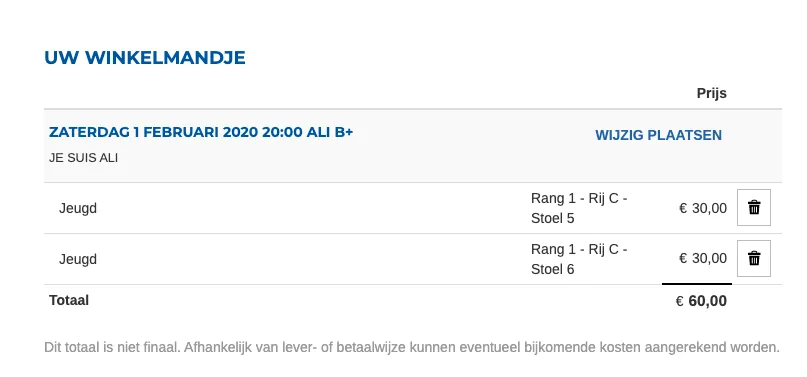
Keep in mind that you need to save your changes both in the 'Edit translations' screen and in the 'Edit web sales skin' screen. It may take some time before the changes are visible on the sales pages.