Price types and price lists
Where can I create new price types and price lists?
Managing price types
You can create new price types or modify existing ones at any time. You can do this via Settings --> Pricing --> Price types.
Creating price types
To create a new price type, click Add in the top right corner.
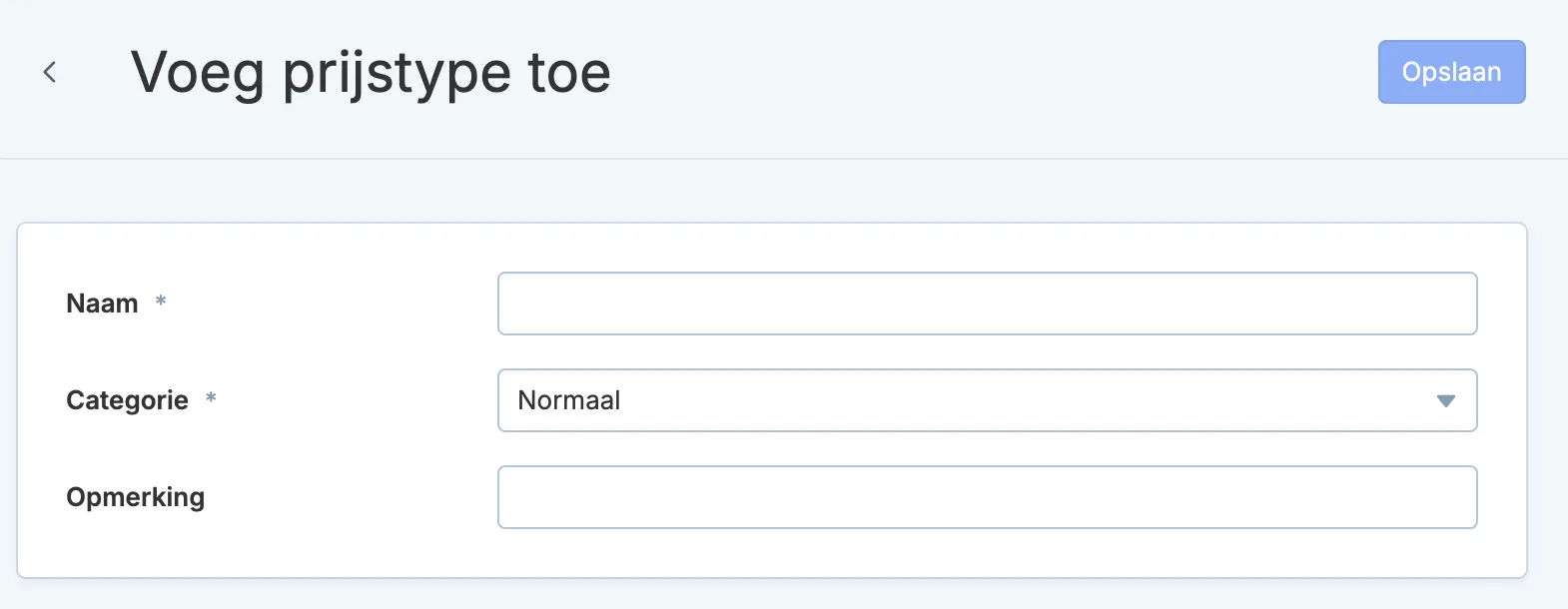
Enter the name, category, and optionally a note. The name and note are visible to customers during the online sales process. Click Save.
You can use the note field to provide more information about the price type. This will also be visible to ticket buyers on the online sales screens.
Would you like to add an extra information field to your price types? Please contact support.
There are five categories:
- Normal: used for standard prices.
- Discount: used for reduced prices.
- VIP: used for special cases, such as VIP tickets.
- Free: used for free tickets.
- Subscription: used for fixed or optional bundles.
Do you have a multilingual account? Don’t forget to add translations.
Editing price types
Open the price type you want to edit, make the necessary changes, and click Save.
Sorting price types
You can adjust the order of price types by clicking and dragging the four horizontal lines.

Managing price lists
If you use the same price settings for multiple events, it can be useful to work with price lists.
Creating a price list
You can create price lists via Settings --> Pricing --> Price lists. To add a new price list, click Add in the top right corner.
Give the price list a clear name and choose whether it can be used for seated events (possibly with different prices per rank) or for general admission events.
Select the price types (and corresponding ranks) you want to add to the price list and click Apply in the bottom right corner.
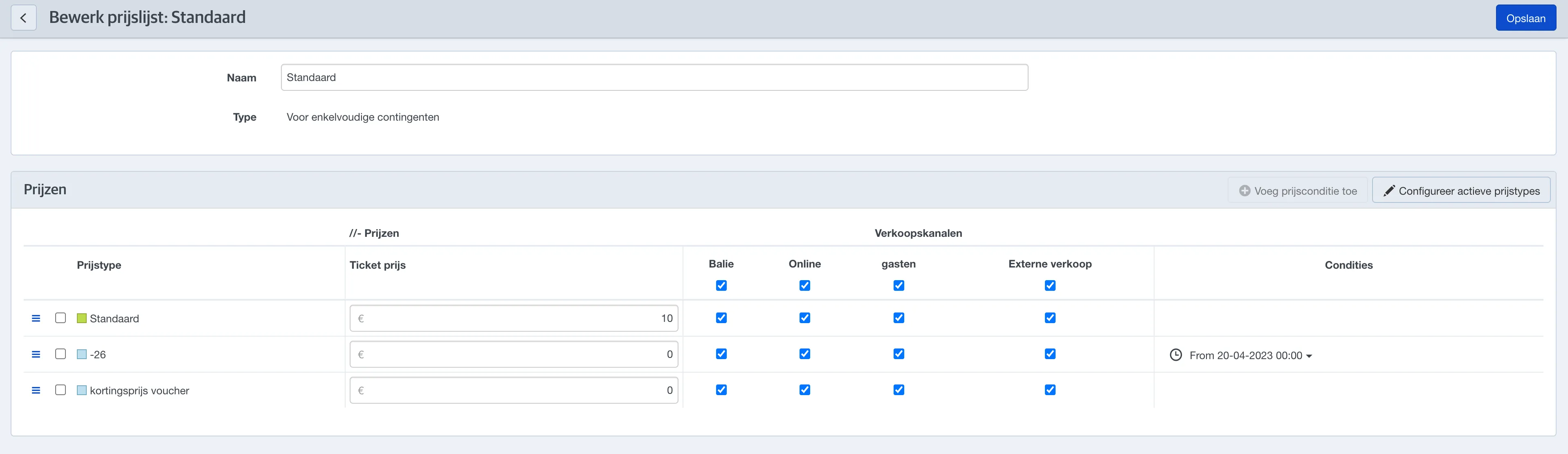
Then, you can set the price for each price type and specify for which sales channel the price type is available.
Adding price conditions
If you want to add a price condition to one or more price types, open the price list, check the price type to which you want to apply the condition, and click Add price condition.

In the next screen, select the price condition(s) you want to apply.
Sorting price types
If you want to display the price types in a different order, open the price list and click and drag the lines next to the price type you want to move.
This change will be visible in every event where this price list is linked.