Shops
How do I set up a ticket shop?
Setting up a shop
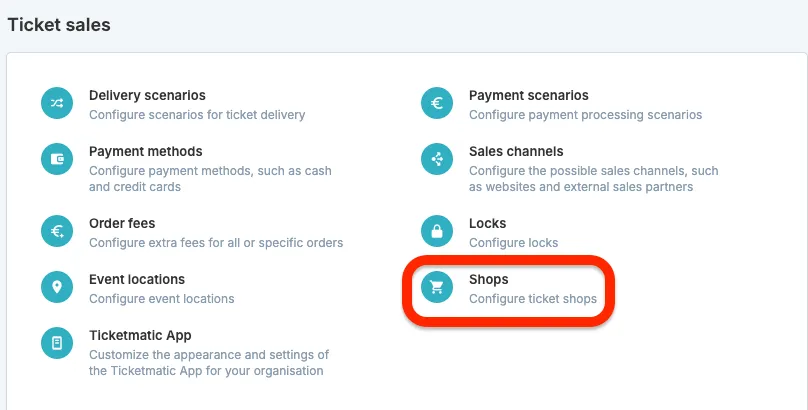
It can be useful to create a dedicated ticket shop, for example to display events of a certain type in a single sales link, possibly combined with a specific product.
You can find the settings for this ticket shop under the general settings of your account.
When you create a new shop here, you can configure and style it on the left side. On the right side, you will see a preview of how the shop will look.
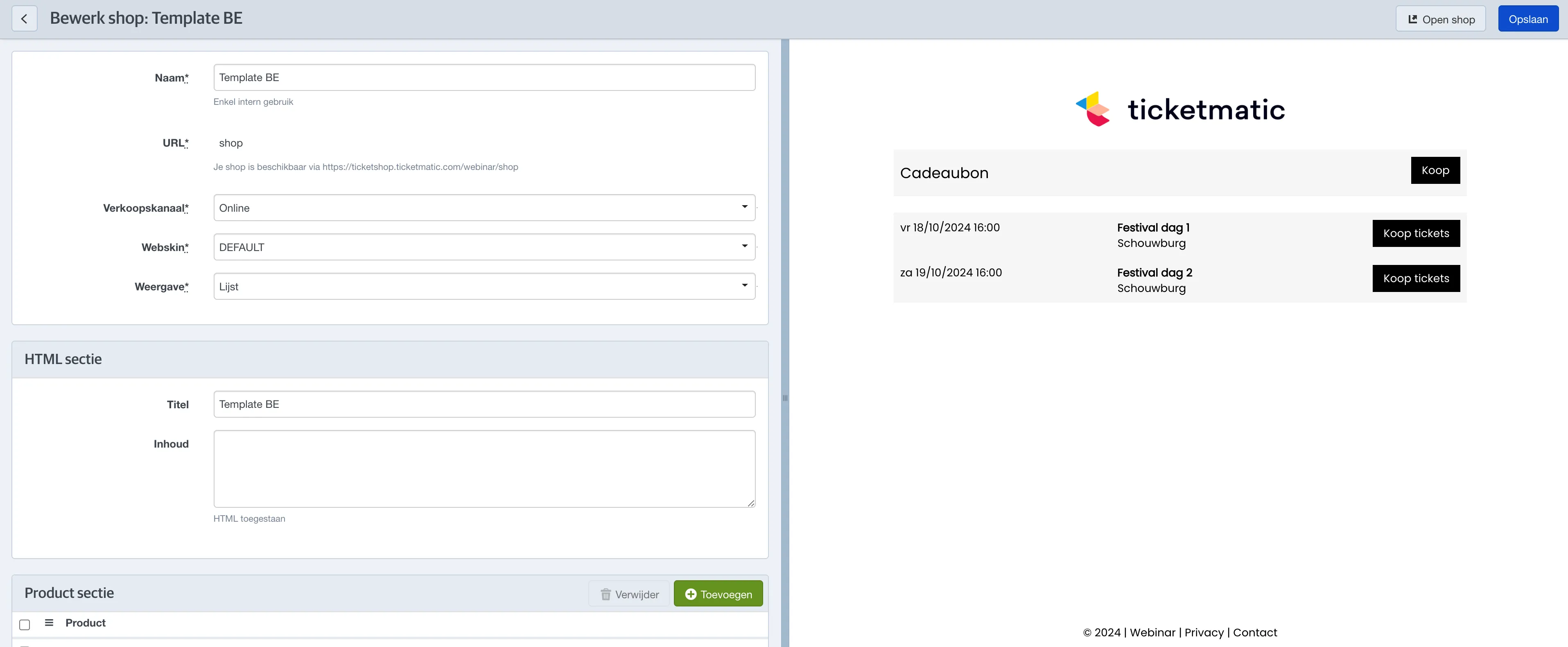
Name: This name is for internal use only and will not be visible to customers.
URL: The name you choose here will be visible in the URL of the ticket shop. Note: once the shop is created, this name cannot be changed.
Sales channel: Here you can choose which sales channel the shop will use.
By linking a specific sales channel to the shop, you can, for example, allow your staff to buy tickets at a discounted rate.
Webskin: Choose which layout (web sales skin) will be used.
Display: You can choose to display the selected events in a list or in a calendar.
HTML section: Here you can add HTML text that will be shown at the top of the page. You can use this space to share a message with your customers.
In the HTML section, you can call attributes defined in your chosen web sales skin.
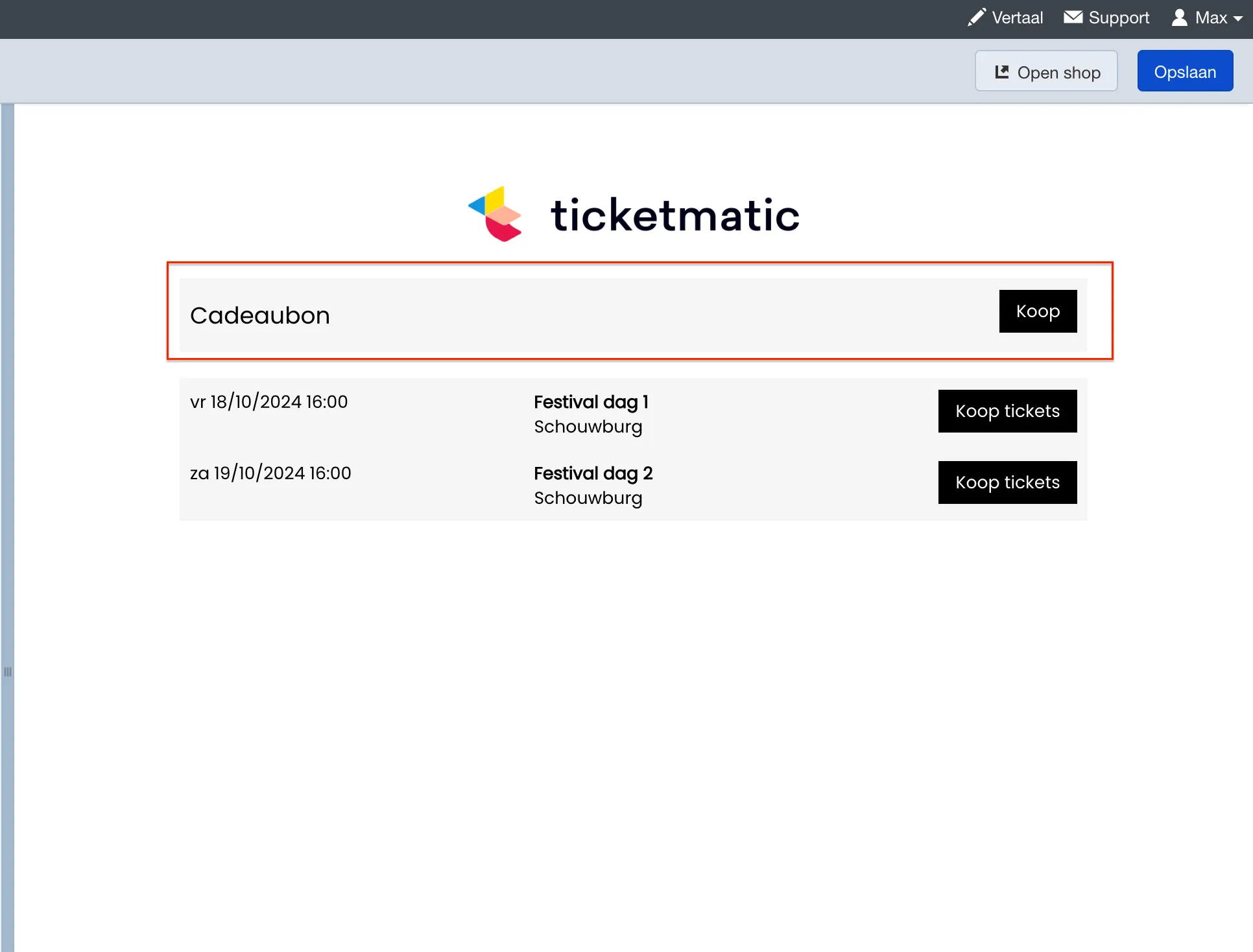
You can then add products to the shop. You have the option to add products, vouchers, and bundles, and you can combine them for a more diverse offer.
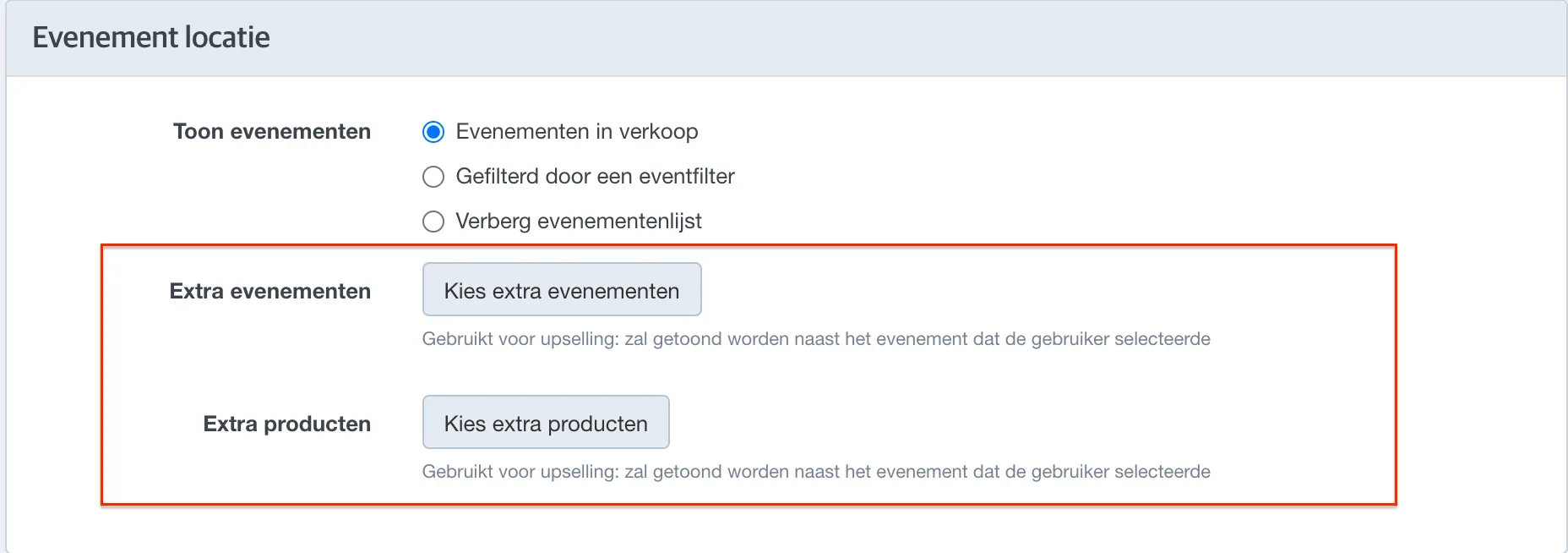
If you select a product here, it will be shown above the events. In a later step, you can also add products to be displayed as upsells.
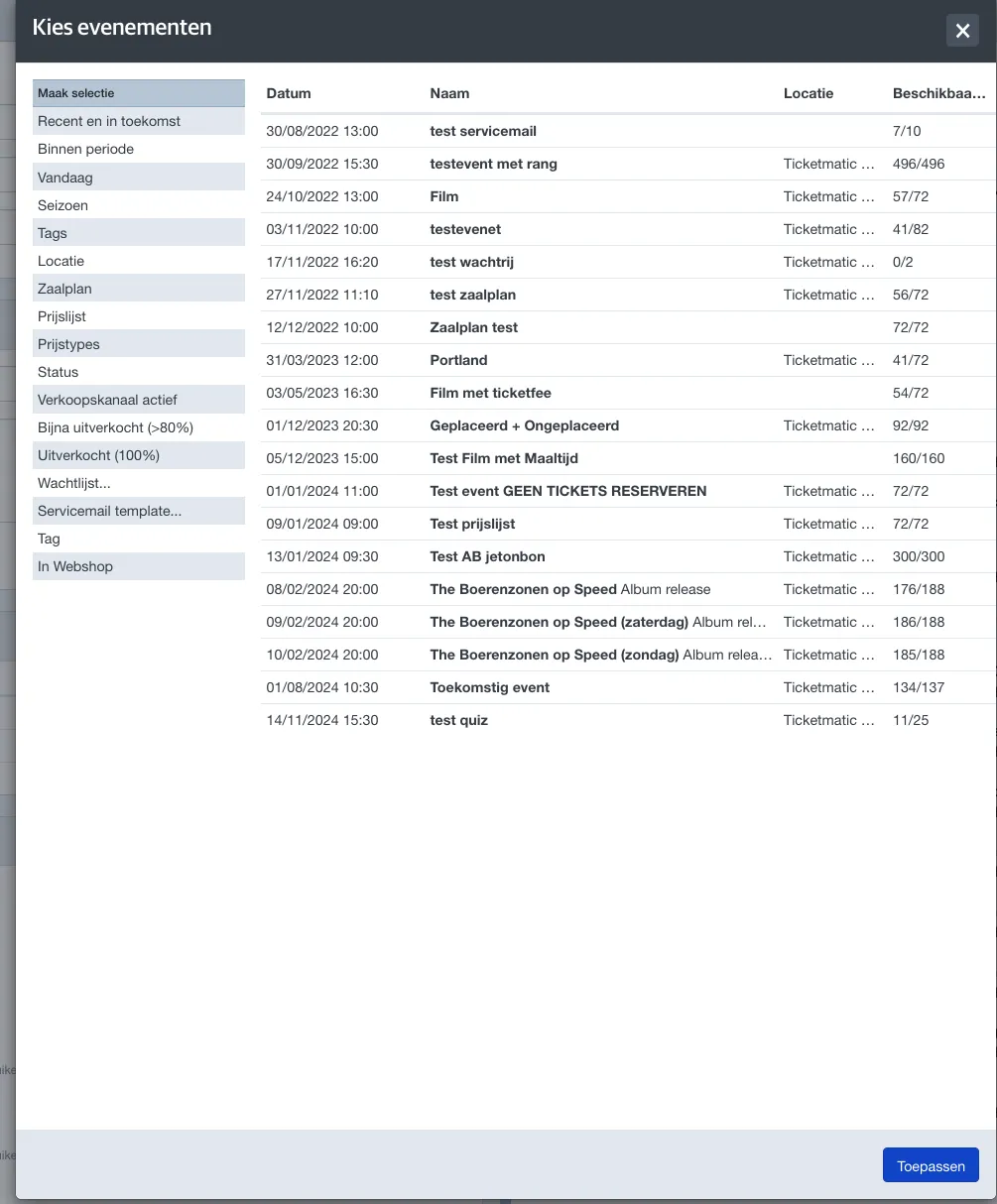
Finally, you can select which events will be displayed in the shop.
By default, this includes all events that are currently on sale. Do you want to display events that are not yet on sale? You can do this by setting the 'date' price condition for the price types.
You can optionally further refine your selection by using a filter (you use filters already active in your account under the Events tab).
You can also choose to show no events and sell only products.
It is also possible to add products or events as upsell items. These will then be shown on the second page of the ticket shop.
Calendar view
Are you organizing ticket sales for an exhibition or another event with many time slots or multiple dates? Then you can use the calendar view of the ticket shop to present everything clearly.
The calendar view automatically groups your events in the overview by name.
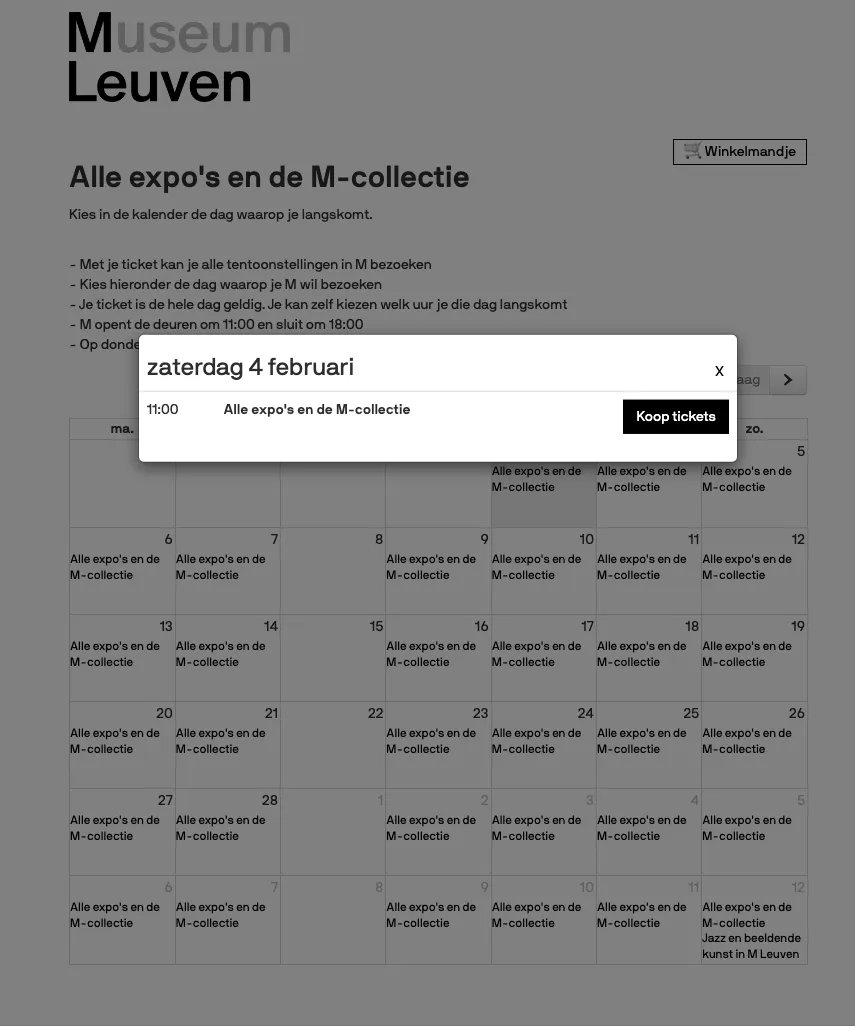
- As a buyer, you first select a date (if your events share the same name, e.g., "All M Collection exhibitions").
- In the second step, the customer selects the time (if multiple time slots are available).
- In the third and final step, the customer only needs to select the price type and the number of tickets.
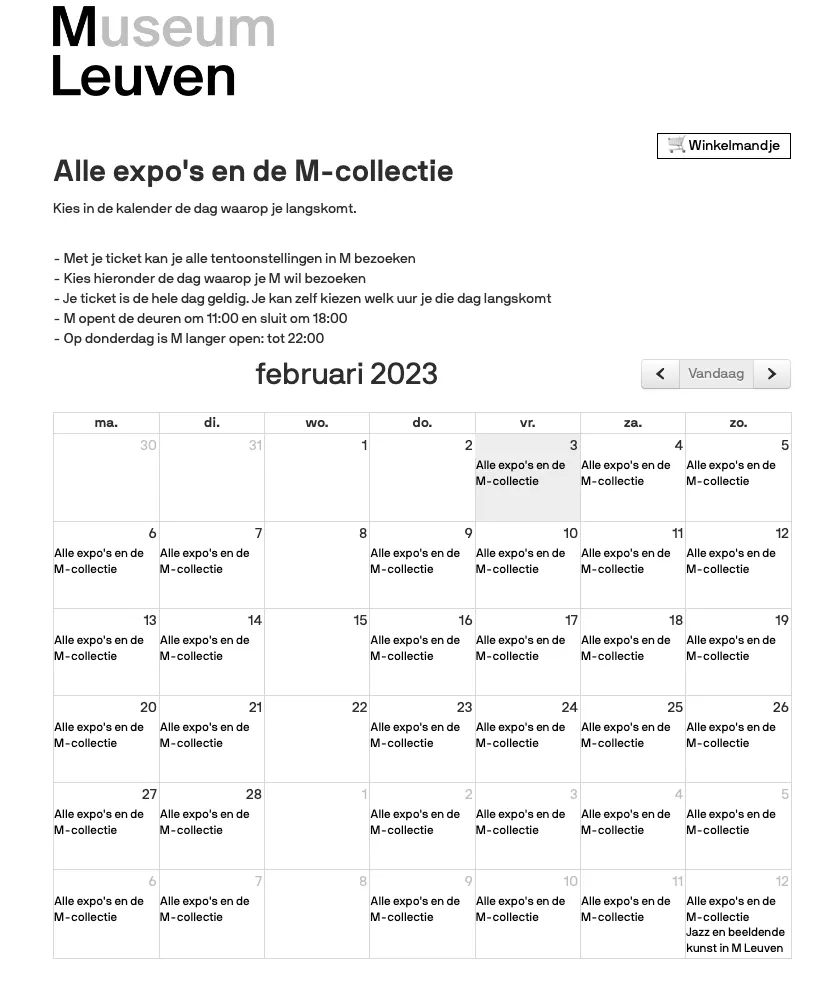
To use this view, you create a separate event for each time slot (same name, different time).
When creating your events, it is helpful to first set up one 'template' event with all the correct settings. You can then copy this event to quickly create the other time slots or dates. It is recommended to use a price list, even if you have only one price type. This makes adjusting settings later easier.
If you assign the same tag to your expo/museum events (for example "Expo"), you can use filters to ensure that only events with that tag appear in the calendar shop.
Instructions on how to create or modify a new tag can be found under Custom field values
Good to know: a store can display a maximum of 1000 upcoming events. If you wish to make more than 1,000 time slots available, you can do so by setting up multiple stores.