Designing Emails
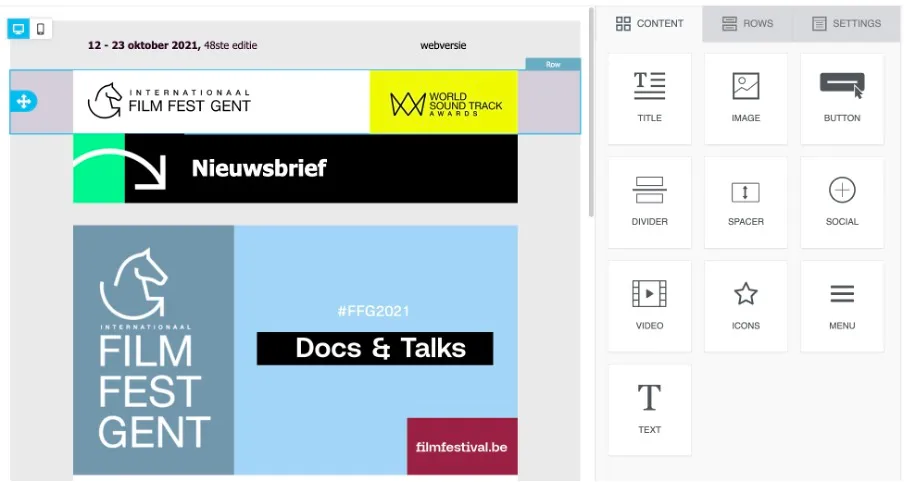
With ticketmatic's visual email builder, you can easily design emails that clearly convey your message and perfectly match your branding.
Exactly the same designer is used for both single mails and event service mails.
Rows
Start by creating the desired structure by adding rows.
Content
Next, you can simply drag and drop the required content elements, such as titles, text, buttons, dividers, icons, videos, and more. Added images can be scaled and edited by applying effects. Customize colors, fonts, backgrounds, corners, and borders to create a professional-looking email. If you need a row layout that is not included in the default examples, you can manually adjust the column structure.
Additionally, you can easily duplicate and rearrange content to make your email look exactly the way you want.
Special links
When creating text blocks, you can choose to add special links.
- Merge tags allow you to personalize your email. Contact merge tags (such as your recipient's first name) can be used in both single mails and event service mails. Event merge tags can be used to display event-specific information in your event service mail (such as timings, location, or additional practical info). All fields available for your contacts or events in Ticketmatic can also be used in your mailings.
- With a Download tickets link or button, you can give your visitors the option to download their tickets again (only available for event service mails).
- The Unsubscribe link allows the recipient to opt out. This is immediately updated in your account.
Settings
In the settings section, you can customize the entire email regarding width, alignment, background, fonts, and link colors.
Preview and test email
- View preview: You can preview the email in both desktop and mobile versions, so you can see how the email looks on different devices.
- Send test email: You have the option to send a test email to an email address of your choice to check if everything is displayed correctly. Important: in test emails, merge tags will not be populated, and the 'Download Tickets' button will not work because there are no actual tickets linked to the test email.
Once you are satisfied with the design, click Save and close to save your changes and return to the overview.
Templates
To ensure you don't have to start from scratch each time, you can create templates that can be easily adapted whenever needed.
You can manage templates via Settings --> Mail templates.
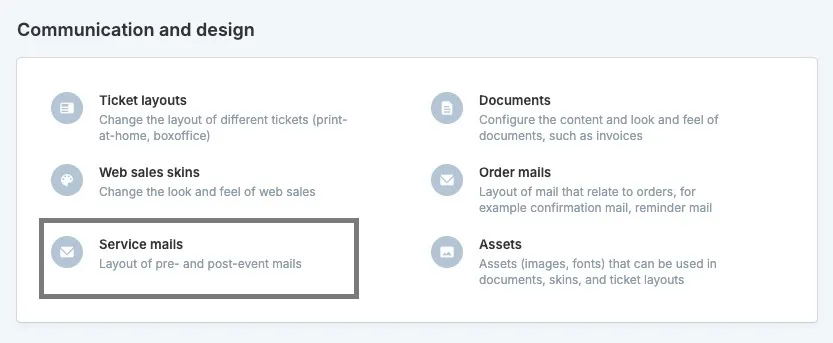
When creating a template, you define whether it is intended for single email campaigns or event service email campaigns. A template cannot be used for both types of campaigns.