Managing waitlist requests
How can I manage and follow up waitlist requests, both online and via the back office?
Creating a waitlist request via the back office
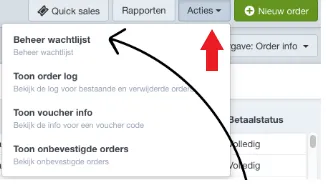
Once the waitlist is enabled for an event, you can register customers on it via the back office. Go to Orders --> Actions --> Manage waitlist to create a new request.
You'll see a list view with all waitlist requests. Click New request at the top right to add one.
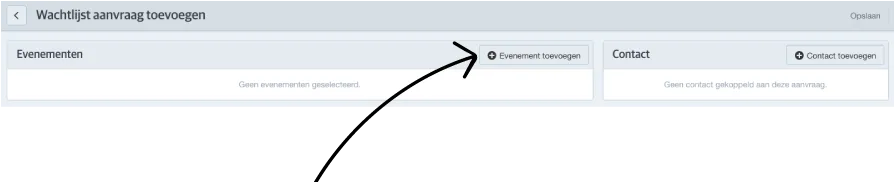
Click Add event to select the event for which the customer wants to join the waitlist.
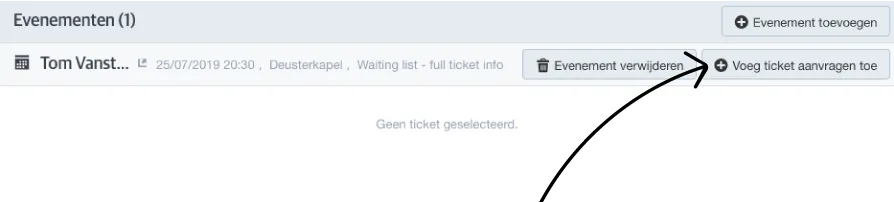
In the next step, you can optionally add the number of tickets. If the waitlist was set up without ticket info, this is not mandatory. To add tickets, click Add ticket requests and specify the number and price type(s).
Finish the request by linking a customer and clicking Save. The request will now appear in the list.
Creating a waitlist request online
Once the waitlist is activated online for an event, online sales will be disabled and customers can only join the waitlist.
The customer selects the event and registers using their email address. If they’re already known in the system, only the email is required. New customers must also enter their contact and address details.
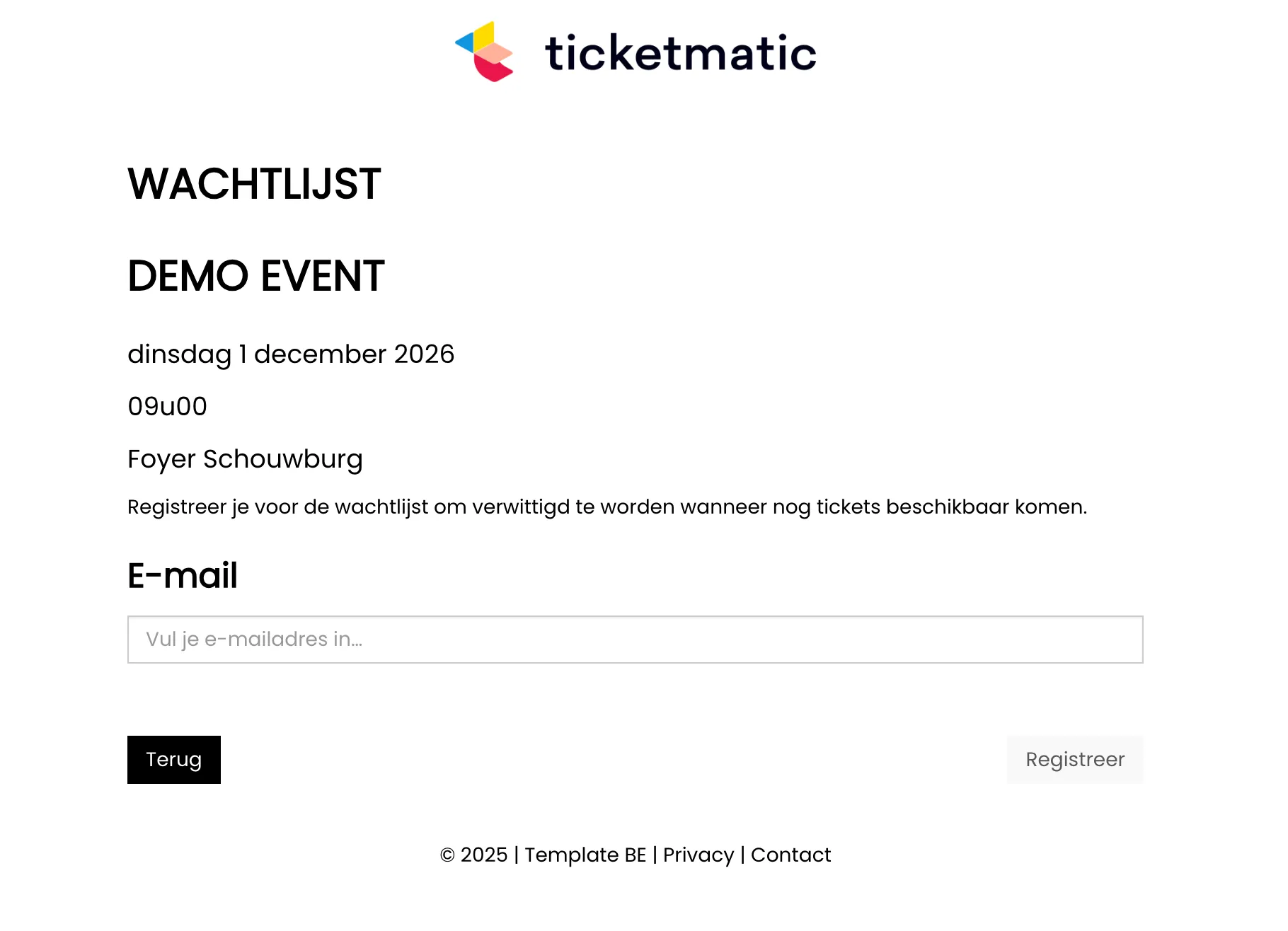
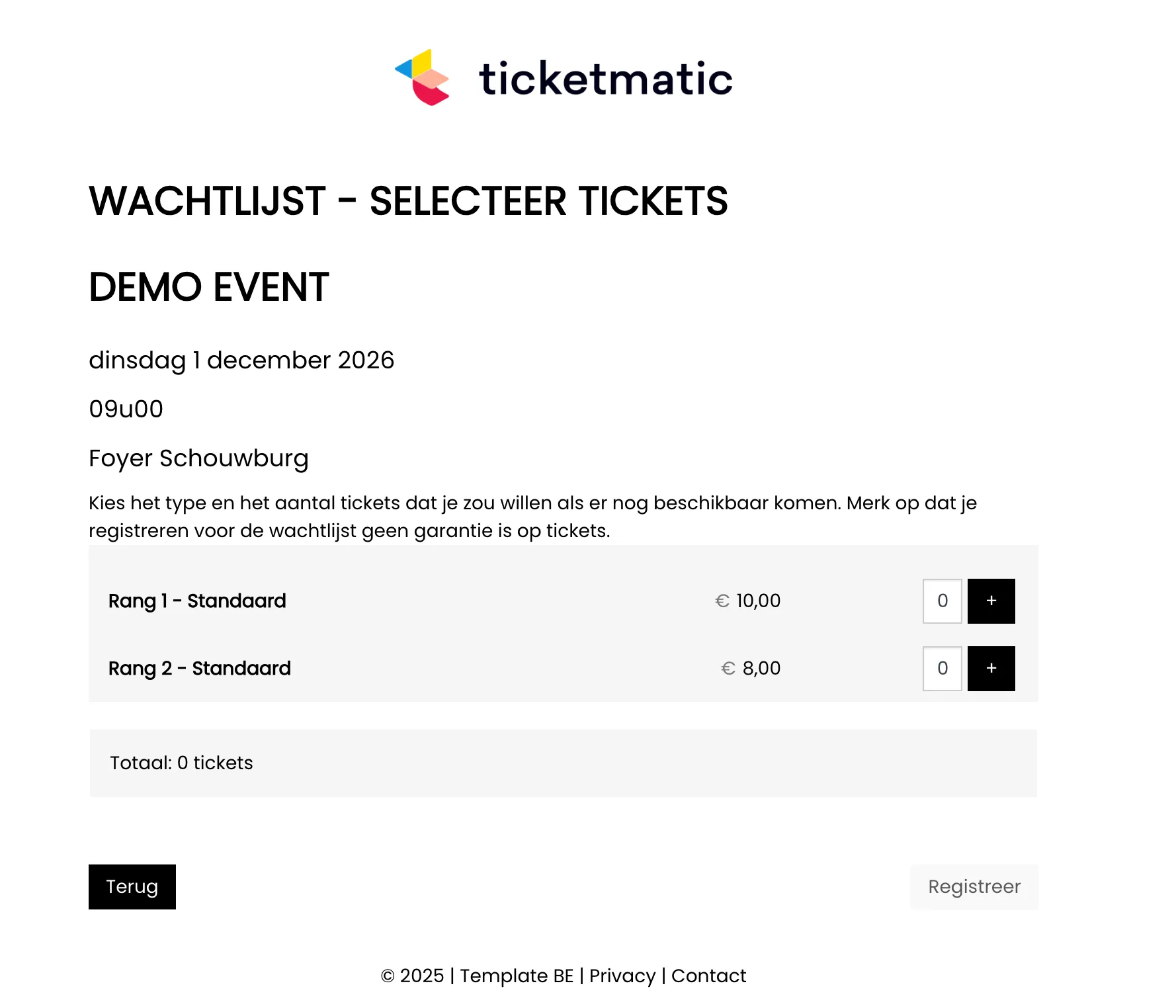
If the waitlist settings require full ticket info, the customer must also choose the number of tickets and the price type.
If no ticket info is required, that page is skipped and the customer receives a confirmation immediately after entering their email.
Converting a waitlist request into an order
If tickets become available for a sold-out event and the waitlist is active, you can convert waitlist requests into new orders.
Go to Orders --> Actions --> Manage waitlist to view all requests.
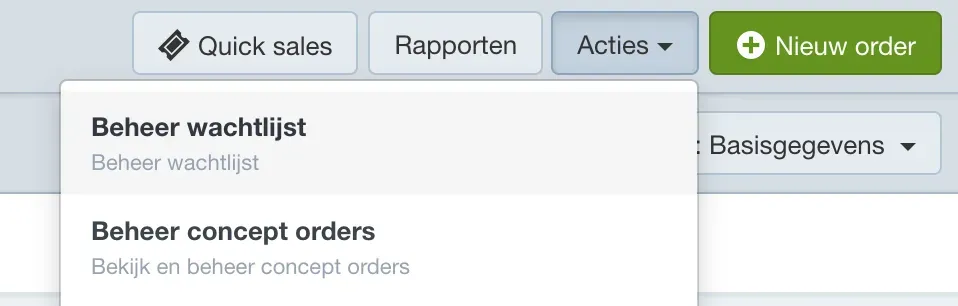
Search or filter by event to find the relevant requests. Then open the one you want to convert.
Before conversion, check ticket availability. There are three availability types:
- Green: Available – Can be converted to an order.
- Red: Unavailable – Cannot be converted.
- Yellow: Unavailable in chosen contingent – Available in other contingents or ranks.

If tickets are available, click Convert to order at the top right.
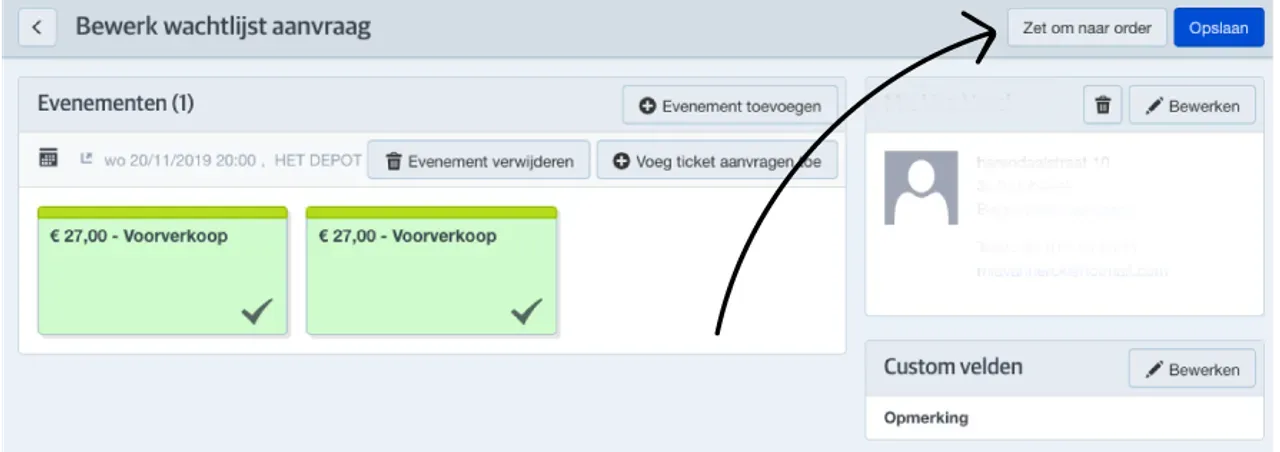
Confirm the action and open the order.

Next, choose a payment and delivery scenario to finalize the order. Click Convert to order to confirm. The order is now listed.