Performing bulk actions on orders
How can I edit multiple orders at once?
It is possible to perform actions on multiple orders simultaneously in ticketmatic. This allows you, for example, to print or resend all orders for a specific event.
Bulk printing of orders
In ticketmatic, you can print multiple orders at once using bulk actions. You can also choose to print a document before or after each order.
Use case: For a selection of orders that still need to be sent by post, you can choose to print an address label for each order.
Select the orders in the list and/or use the filters to retrieve the desired selection.
After selecting the orders, go to Actions → Print tickets.
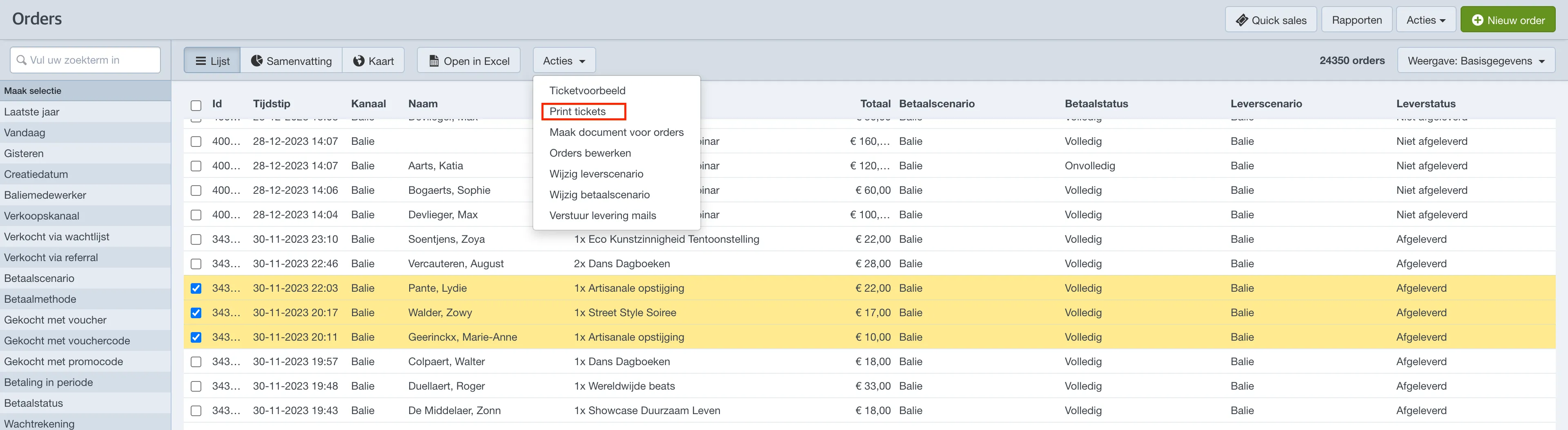
You can then choose to print a document before or after each order. If you do not want to print documents, leave both options unchecked and confirm by clicking Print. All tickets (and documents) will then be printed.
Sending order delivery emails in bulk
In the Orders tab, you can (re)send a delivery email for a selection of orders.
To do this, select the orders in the list, then go to Actions and choose Send delivery emails.
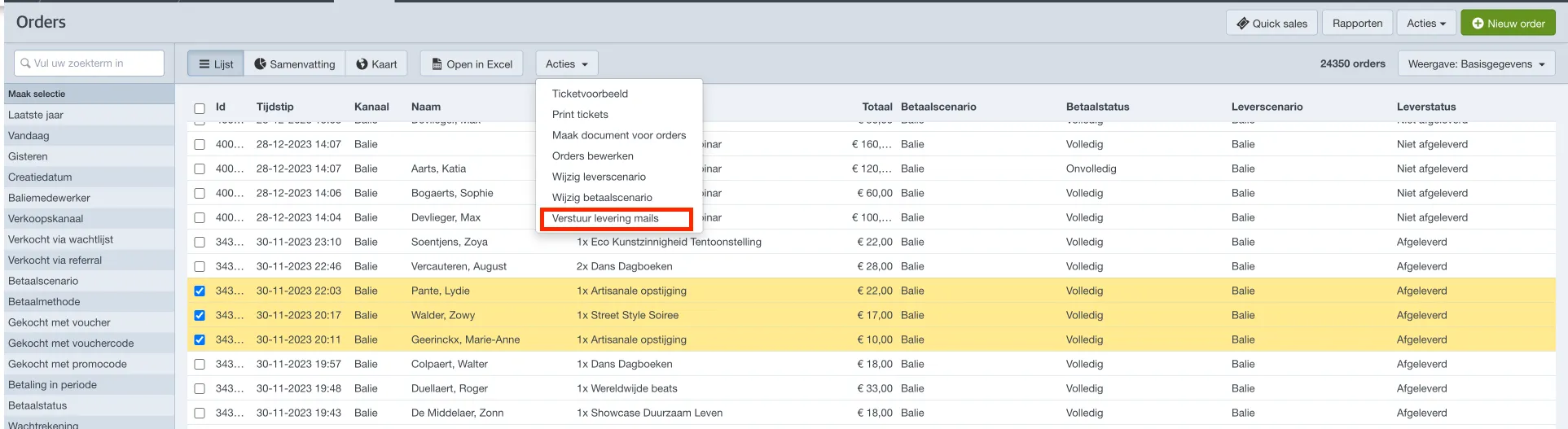
In the next screen, select which order email to send. Only emails of the type delivery will be shown in this list.
Het type van een ordermail stel je in via Instellingen --> Order mails
If your selection includes unpaid orders, the system will warn you.
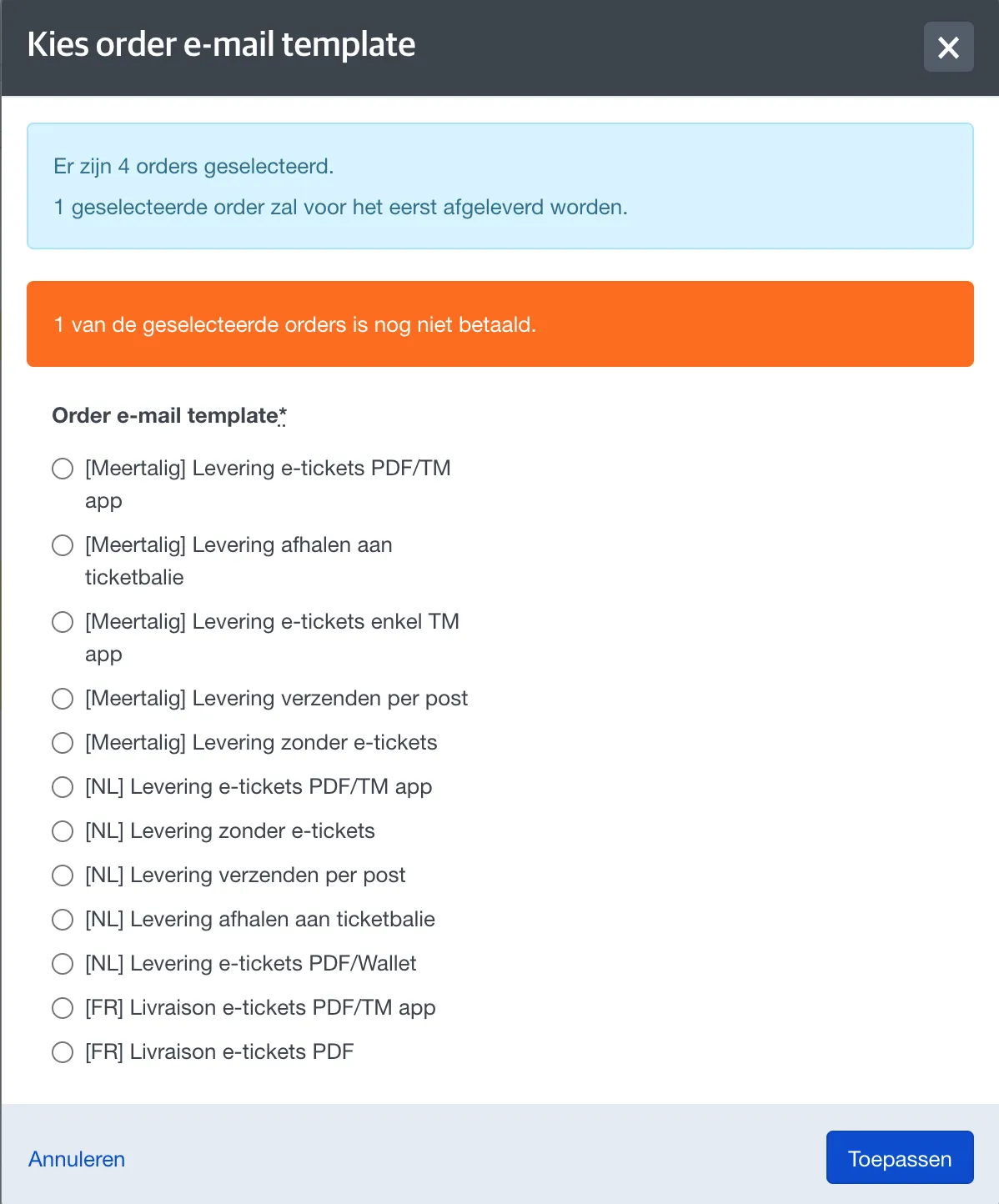
If the order email contains a download link to the tickets, it is important that the orders in your selection use a delivery scenario that allows e-tickets. You can check this in the settings of the delivery scenario. If any orders do not allow e-tickets, the download link will not work.
To ensure that everyone can download their tickets, you must first change the delivery scenario for your selection. The necessary instructions for editing delivery scenarios in bulk can be found below.
Changing delivery scenario in bulk
In the Orders tab, you can change the delivery scenario for (a selection of) orders in bulk (in a single operation). Select the orders from the list, then go to Actions → Change delivery scenario.
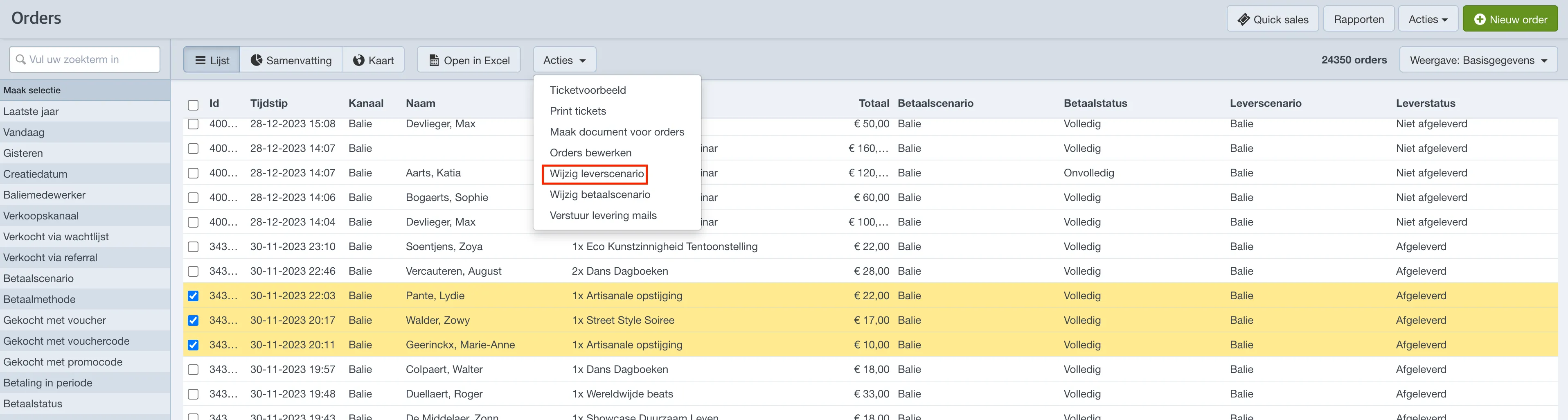
You can now choose a new delivery scenario and click Apply.
If you choose a delivery scenario that automatically sends an email, it will be sent immediately after changing the delivery scenario.
Similarly, you can also update the payment scenario for multiple orders at once.
Changing delivery status in bulk
In the Orders tab, you can change the delivery status for (a selection of) orders in bulk. Select the orders from the list, then go to Actions → Edit orders.
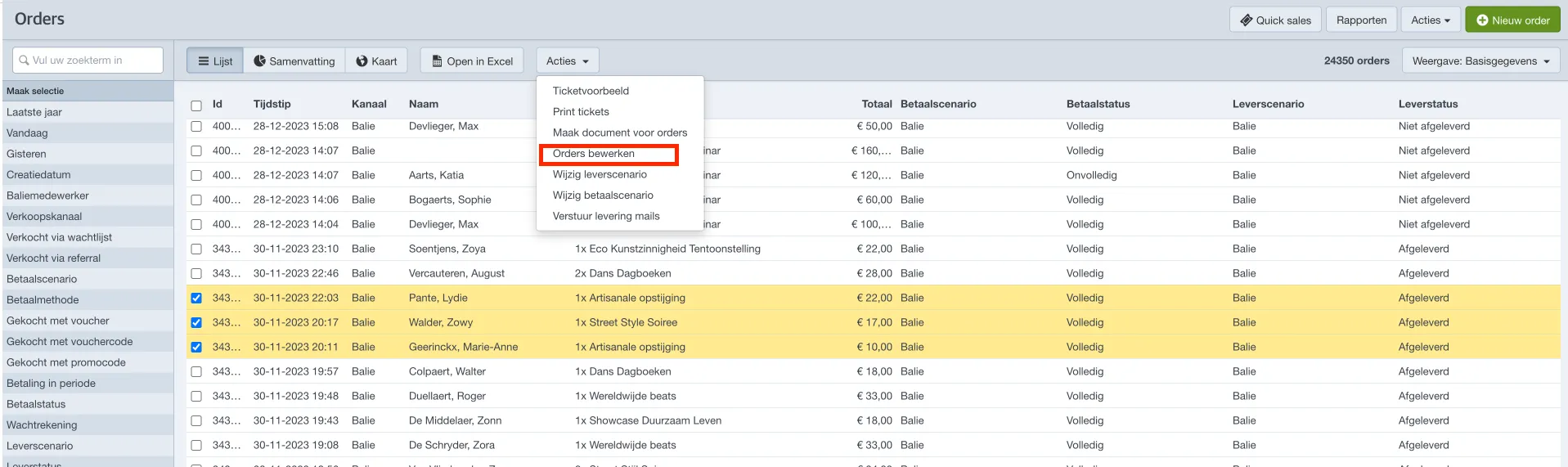
In the next screen, choose Delivery status, select the desired status, and click Apply.
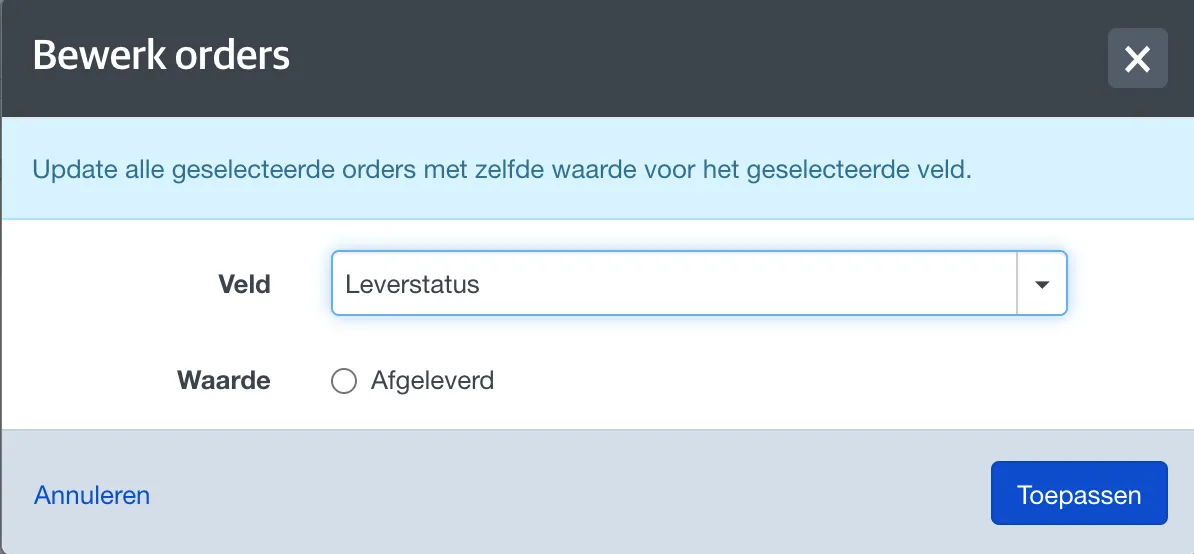
The delivery status of an order must always be set to delivered before the tickets become available in the app.