Sending app messages
With app messages, you can communicate directly with your audience through the Ticketmatic App. Share practical information, promote upcoming events, or collect feedback from visitors.
You can target specific audiences using contact filters, personalize messages, and add interactive elements such as ratings, surveys, and buttons.
Who can receive app messages?
App messages are delivered only to contacts who use the Ticketmatic App. You can select recipients using your existing contact filters, but contacts who do not use the app will not receive the message.
This guide explains how to create, send, and track app messages.
1. Create a new app campaign
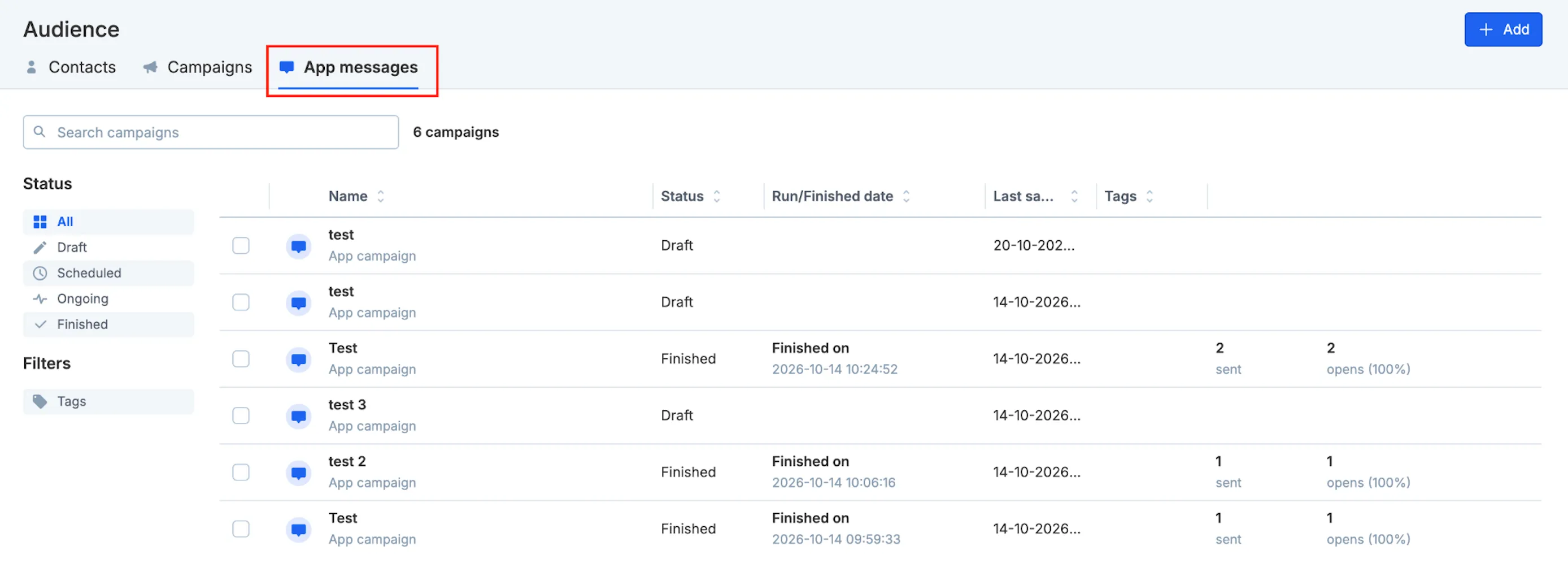
- Go to Audience → App messages in your Ticketmatic account.
- You'll see an overview of your existing app campaigns and their status.
- Click Add in the top-right corner to create a new campaign.
- Enter an internal Name for your campaign. This name is only used within Ticketmatic and is not visible to recipients.
- Select Single app message as the campaign type.
- Click Save to continue.
You can now configure your campaign.
2. Select your recipients
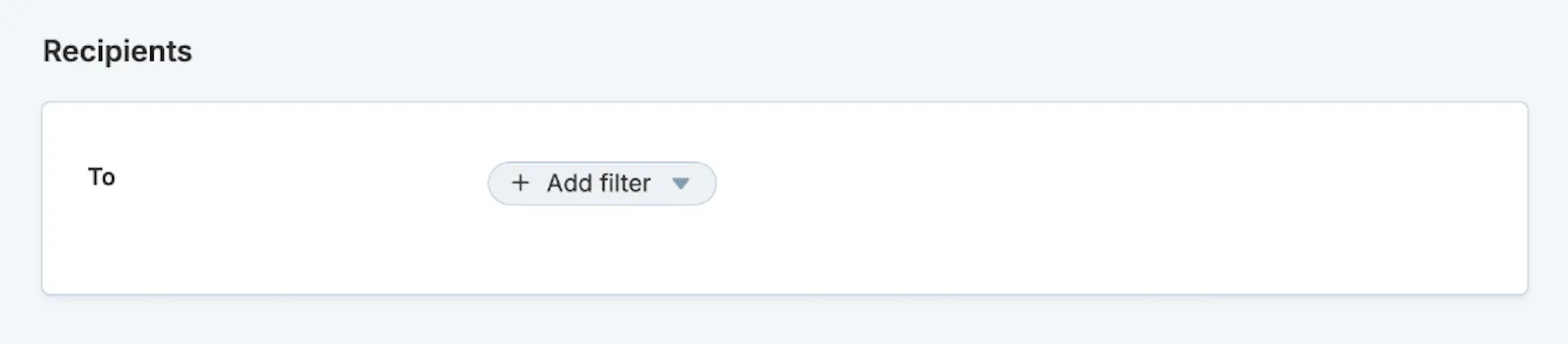
Under Recipients, define who should receive your message.
- Click Add filter.
- Select one or more contact filters to define your target audience.
- Combine filters where needed to narrow down your selection.
You can use the contact filters available in your Ticketmatic account.
Example 1: Send practical information before an event
Want to remind visitors about the starting time, parking facilities, or other practical details? Use the Bought tickets for... filter to select contacts who purchased tickets for a specific event.
Example 2: Promote an upcoming event
Want to inform visitors about an event they might be interested in? Use purchase history to select contacts who attended similar events over the past years. You can combine this selection with the appropriate marketing opt-in filters.
Important: Only contacts who use the Ticketmatic App can receive app messages, even when your contact filters include a wider audience.
Tip: Missing a filter that would be useful for your campaigns? Contact Ticketmatic Support to discuss whether an additional filter can be configured.
3. Create your message
Under In-app messages, you can create the content that recipients will see in the Ticketmatic App.
Click Add message and choose between Text and Images.
You can combine multiple text and image blocks within a single app message. This allows you to create messages containing different types of content, such as an introduction, an image, and an interactive question.
Text messages
Select Text to write your message.
You can customize the content using:
- Bold formatting to highlight important information.
- Emojis to make your message more engaging.
- Contact merge tags to personalize the message using information stored in Ticketmatic.
For example, use {{{ contact.firstname }}} to address recipients by their first name.
Example message:
Hi {{{ contact.firstname }}},
Tomorrow is the big day! We're looking forward to welcoming you to our event. Here is some practical information to help you prepare for your visit.
Add interactive elements
You can make text messages interactive by clicking Add interaction.
Interaction | What it does | Example use |
|---|---|---|
Star rating | Lets recipients give a rating from 1 to 5 stars. | Ask visitors to rate their experience. |
Link button | Adds a clickable button that opens a specified URL. | Direct visitors to practical information or a webpage. |
Slider | Lets recipients select a value on a scale. | Ask visitors to rate an aspect of their experience. |
Multiple choice | Lets recipients choose from predefined answers. | Ask how visitors travelled to your venue. |
Form fields | Lets recipients enter information in a form. | Collect open feedback or additional information. |
These interactions allow you to collect feedback directly through the app.
For example, after an event, you could send a message asking:
How did you travel to our venue today?
Recipients can select an answer using a multiple-choice interaction.
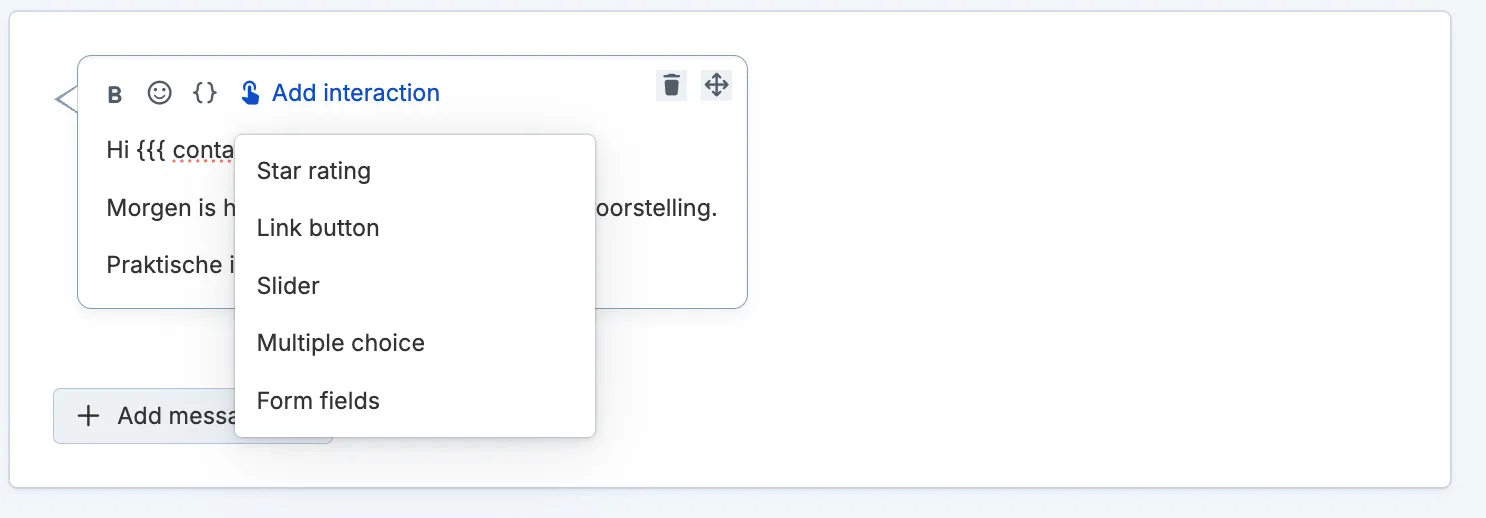
Image messages
Select Images to add an image to your message.
- Click Add message → Images.
- Select an image from your device.
- Add it to your message.
Image messages can be useful for sharing visual information, such as a venue map or promotional artwork.
You can combine image blocks with text blocks and interactive elements in the same message.
4. Configure the push notification
Under Notification, you can configure the push notification associated with your app message.
A push notification is the alert recipients may see on their phone, while the in-app message contains the content they can view inside the Ticketmatic App.
The notification contains two fields:
- Title: Automatically displays your organization's name. You cannot edit this field.
- Body: Enter the short message you want recipients to see in the notification.
For example:
Title: Your venue name
Body: Looking forward to seeing you tomorrow! Here's everything you need to know before your visit.
What if a recipient has disabled push notifications?
The message will still be available in the Ticketmatic App. Disabling push notifications only prevents the recipient from receiving an alert on their phone; it does not prevent the in-app message from being delivered.
5. Organize your campaigns with tags
Under Tags, you can add tags to organize your campaigns.
Tags make it easier to group and find campaigns in the App messages overview.
For example, you could use tags such as Practical information, Promotion, or Visitor feedback.
You can add multiple tags to the same campaign.
6. Send or schedule your campaign
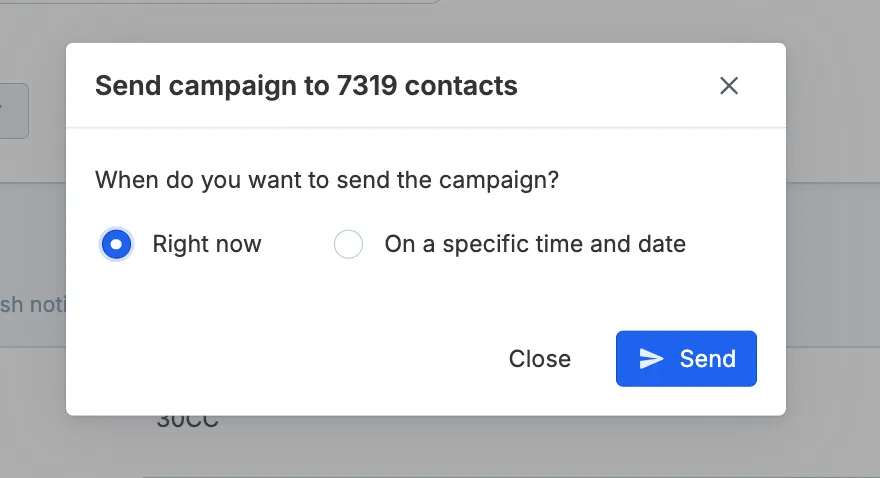
Once your message is ready, click Send or schedule in the top-right corner.
You'll see the number of contacts included in your selection and can choose when to send the campaign.
You have two options:
- Right now: Send your campaign immediately.
- On a specific time and date: Schedule your campaign for a later date and time.
Confirm your choice to send or schedule the campaign.
If you're not ready to send it yet, click Finish later to save your campaign as a draft.
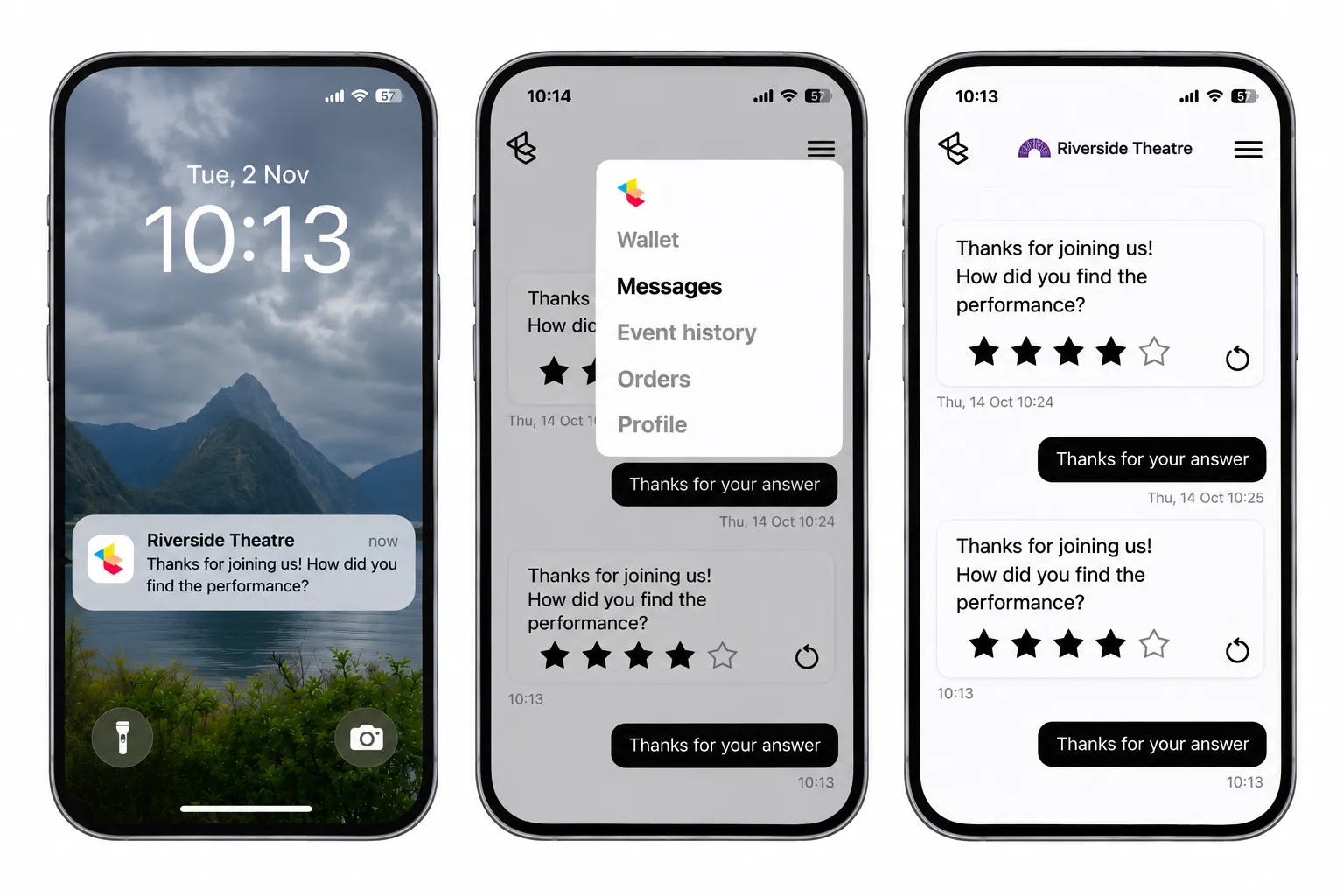
7. How recipients receive your message
App messages are delivered to contacts who use the Ticketmatic App.
In-app message
Recipients can find their messages in two places:
- The app's message inbox: An overview of messages received through the Ticketmatic App.
- The organization's page: Messages from your organization are also accessible directly from your organization's page within the app.
Recipients can open messages to read the content, view images, follow links, and respond to interactive elements.
Push notification
Recipients who have enabled notifications will also receive an alert on their phone.
The notification displays your organization's name and the text you entered in the Body field.
Recipients who have disabled push notifications will not receive this alert, but they can still find and read the message in the app.
In short: An in-app message is the actual content delivered through the Ticketmatic App. A push notification is an alert that draws the recipient's attention to that message.
8. Track results and responses
After sending a campaign, you can follow up on its performance and the responses you receive.
- Go to Audience → App messages.
- Open the campaign you want to review.
- Navigate to its Summary screen.
You can view your campaign's open rate to understand how many recipients opened the message.
Depending on the interactions included in your message, you can review:
- Star ratings: View the average rating submitted by recipients.
- Multiple-choice answers: See how recipients answered your questions.
- Slider responses: Analyze the values selected by recipients.
- Form responses: Review the information submitted through form fields.
Results are available both in aggregate and at individual contact level. This allows you to analyze overall trends while also reviewing responses from specific contacts.
You can also download collected form responses to Excel for further analysis.
For example, if you ask visitors how they travelled to your venue, you can analyze the distribution of transport methods across your audience and review individual responses.
9. Privacy and communication preferences
Before sending app messages, make sure your communication complies with your organization's privacy statement and applicable data protection regulations.
Practical and transactional messages
Messages containing essential information about an event, such as changes to starting times or practical instructions, can generally be sent to ticket buyers when there is an appropriate legal basis.
Promotional messages
For marketing or promotional messages, we recommend using the appropriate opt-in filters to select recipients who have agreed to receive this type of communication.
Make sure your privacy statement and consent wording clearly explain which communication channels you use.
If you already collect consent for marketing emails, consider updating your opt-in wording to explicitly include promotional app messages where appropriate. Existing consent should not automatically be assumed to cover additional communication channels.
Important: Always check that your intended audience, message content, and communication preferences are consistent with your organization's privacy policy and applicable regulations.