Wallet: visibility and forwarding tickets
The ticket holder will find all their valid tickets for upcoming events at the top. Tickets are grouped by event and sorted by event date, with the next upcoming event appearing first.
Ticket Visibility in the App
There are certain conditions a ticket must meet before it becomes visible in the wallet:
- The QR code is shown until the end time of the event. After that, the event stays in the wallet without a QR code for up to 12 hours and then moves to the Event History, which the app user can access per organization. A ticket that has been scanned moves to the history 72 hours after the scan.
- The order containing the ticket must be confirmed and delivered.
- The user must either be the buyer in the order (determined by email adress) or the ticket must have been forwarded to them.
- The delivery scenario for the order must allow the ticket to be shown in the app. Specifically, the field 'Allow e-tickets' must have one of the following values: E-tickets and smart tickets, Only smart tickets, Only secure smart tickets.
Tickets delivered with a delivery scenario where 'Allow e-tickets' is set to PDF & Wallet will also appear in the app, but buyers will still first see the wallet link.
If you want to allow tickets in other wallet apps besides the Ticketmatic App, the 'Allow e-tickets' field must be set to PDF & Wallet for the delivery scenario used. However, it is recommended to allow tickets only via the Ticketmatic App and as PDF.
Changes to orders or new orders are synced almost in real-time with the app, so the wallet is always up to date (as long as the user is online).
Once tickets are loaded in the wallet, they are also available offline. This means the user does not need an internet connection at access control if the tickets were previously downloaded to the wallet.
Vouchers and producten are not visible in the App.
Forwarding Tickets
Users can easily forward tickets to other users. A "Send" link appears on each ticket for which forwarding is allowed:
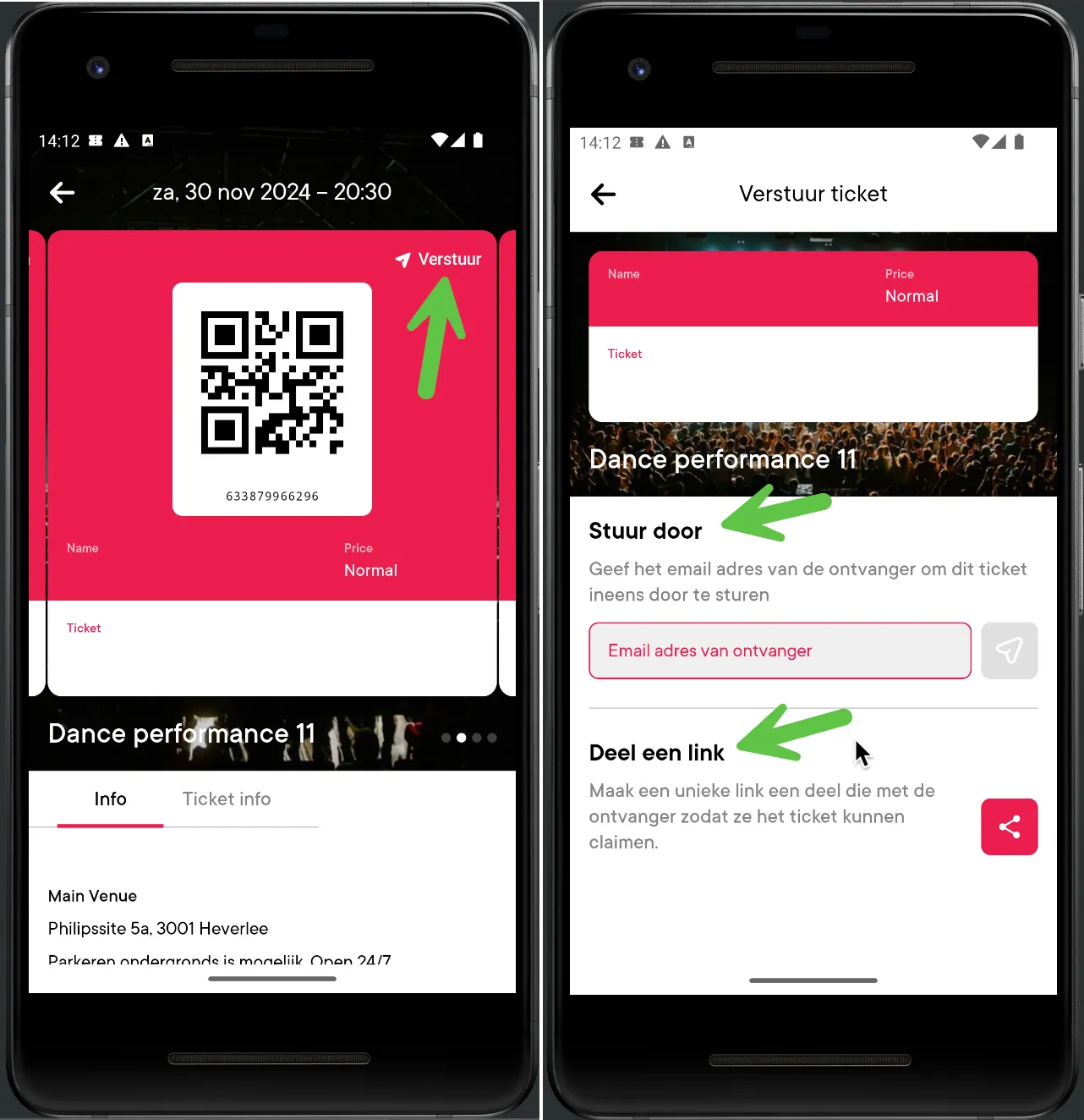
Tickets can be forwarded in two ways:
- By directly providing an email address of another app user. In this case, the ticket is immediately transferred to the recipient's app. This only works if the recipient has the app already installed.
No actual email is sent to the other app user's email address. If the customer wishes to send an email, they can do so via a unique link.
Er wordt geen effectieve e-mail verstuurd naar het e-mailadres van de andere app gebruiker. Wil de klant een e-mail uitsturen, dan kan dat 'via een unieke link'.
- Via a unique link. The user can generate a link for a ticket and share it with the recipient via their preferred channel (WhatsApp, chat message, Slack, etc.). When the recipient clicks the link, the ticket is transferred to them. The recipient must already have the app installed.
Forwarded tickets indicate that the ticket was sent to a friend. The original buyer can no longer use this ticket. However, the original buyer retains control over the forwarded tickets and can request them back at any time.
Forwarding is only possible for regular tickets; secure smart tickets cannot be forwarded.
If desired, as an organizer, you can set that tickets for certain events cannot be forwarded. This must be activated once by contacting support. Once activated, you will find a Send to friend field for each event, which allows you to configure whether ticket forwarding is permitted.
Editing Profile
In the app, the ticket holder can manage their own profile per organization. By default, you can change or add your name and phone number. You can also make additional fields visible, such as opt-ins. Contact support to have these options activated.