Performing bulk actions on events
How can I edit multiple events at the same time?
Ticketmatic supports the ability to edit multiple events simultaneously. This allows you to quickly and efficiently apply changes to productions or a group of events.
Which items can you edit simultaneously?
It is not possible to change all fields and settings for events at once. Some actions, such as modifications to pricing settings, are not permitted as they can greatly impact ticket sales.
The data that can be modified in this way includes:
- Basic details: name, subtitle, location, date, and custom fields.
- Ticket layout
- Seat selection
- Allow single seats
- Service emails
- Sales periods
Using price types and price lists enables you to update pricing settings for multiple events at once.
Editing events simultaneously
You can edit events in bulk from the event list by selecting one or more events. Then go to Actions --> Edit fields for events.
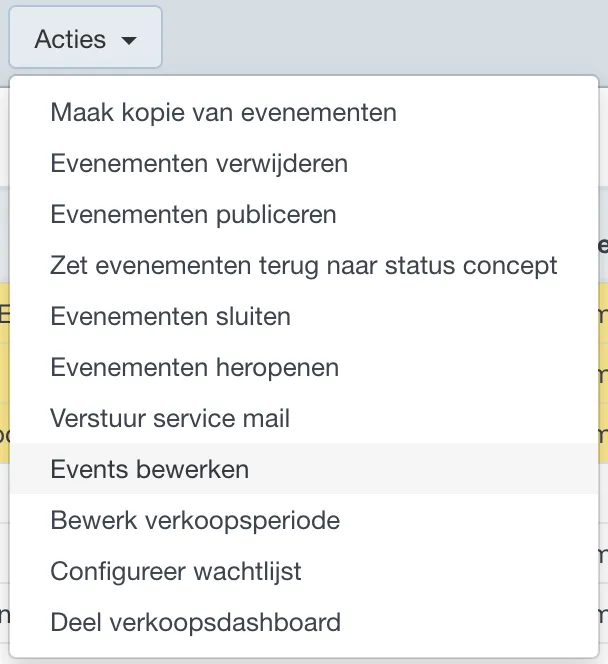
Next, select the item you want to modify for the selected events.
For fields with multiple possible values, such as Genre: Theatre and comedy, you have three options for making changes:
- Add: the selected values will be added alongside existing values, which will be retained.
- Remove: the selected values will be removed for all events in your selection.
- Set: only the selected values will be added, and all previously set values will be removed.
Adjusting sales periods in bulk
When you need to change the start or end time of sales for a performance, you can adjust this period for a selection of events for a specific sales channel all at once. Instead of Edit events, choose Edit sales period.
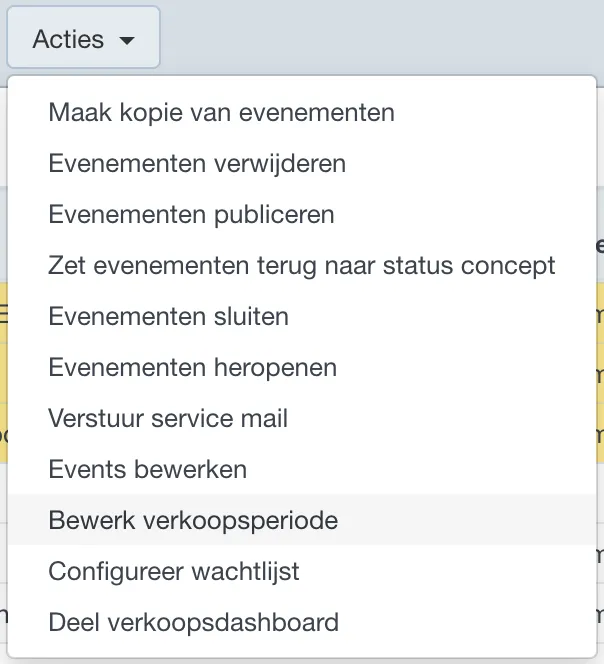
Here you can modify the sales start and end date or time per sales channel. You can also disable sales for a specific channel.
Sharing the sales dashboard in bulk
Select the events for which you want to share the sales dashboard in bulk. In Actions, choose Share sales dashboard and enter the email address.
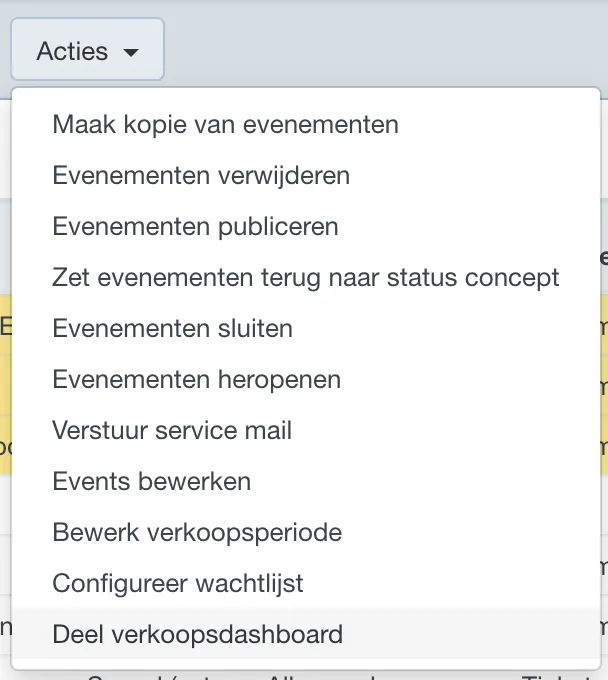
Users who do not yet have access to the dashboard will receive an invitation. For existing dashboard users in your account, the selected performances will be added to their dashboard.
Configuring the waiting list
Select the events for which you want to configure the waiting list management, then choose Configure waiting list from Actions.
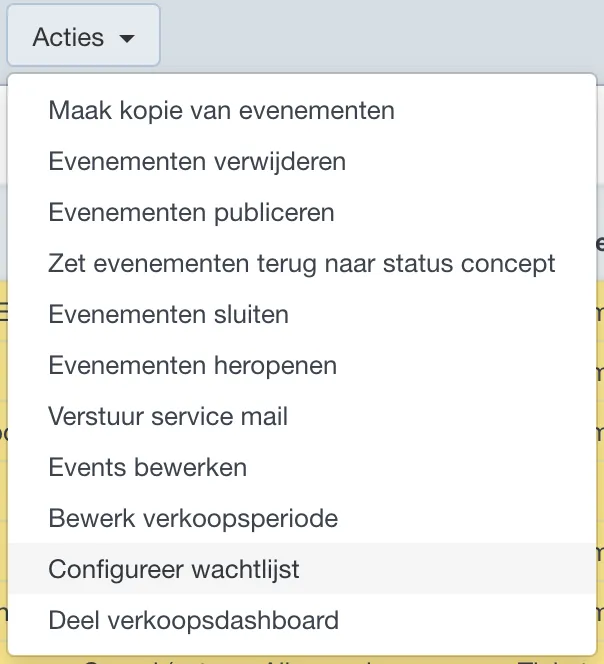
Next, select which option you want to set up and for which sales channel.